
NVD RTX PRO 6000 Blackwell
4.3Editor score
96GB ECC DDR7 memory
5th Gen Tensor Cores
Universal MIG partitioning
600W workstation cooling
This expert guide compares 10 GPUs for ComfyUI in 2026, covering VRAM, AI performance, memory bandwidth, cooling, power, compatibility, and workstation needs.
Choosing a GPU for ComfyUI is more complicated than comparing gaming benchmarks. Image-generation workflows place unusual demands on VRAM, memory bandwidth, compute performance, and sustained thermal capacity, so the right card depends heavily on the models, resolutions, and batch sizes you intend to run.
This guide compares ten professional, workstation, and gaming graphics cards using the supplied specifications and customer ratings. It covers memory capacity, architecture, AI-related hardware features, cooling design, physical dimensions, power requirements, display support, and features relevant to local generative-AI workloads.
Each pick highlights a different way to approach ComfyUI, from compact 16GB models to a 96GB workstation accelerator. Ratings and specifications reflect the available product information, while prices and availability change frequently, so confirm current listing details and system requirements before ordering.
4.3Editor score

4.7Editor score

4.7Editor score
This side-by-side comparison emphasizes the factors that most directly affect ComfyUI: usable memory, architecture, cooling, physical fit, and workstation-oriented features.




The NVD RTX PRO 6000 Blackwell is the clear choice for users who want ComfyUI to operate on large models, complex workflows, and multiple concurrent workloads without being constrained by a typical gaming card's 16GB memory ceiling. Its 96GB of ECC DDR7 memory is the defining feature, while the listed 4.3 rating reflects the available customer feedback rather than a hands-on assessment.
We may earn a commission when you buy through this link, at no additional cost to you.
Memory capacity matters because ComfyUI can need to hold model weights, text encoders, latent data, control inputs, and intermediate image tensors at the same time. The card also provides 1.8 TB/s of memory bandwidth, fifth-generation Tensor Cores with FP4 support, fourth-generation ray-tracing cores, and PCIe Gen 5 bandwidth. Universal MIG can split the device into isolated instances, making it useful for separating experimentation, production, and other GPU-accelerated tasks.
The trade-offs are substantial. This is a professional accelerator designed to sustain a 600W load, so it demands a suitably robust power supply, motherboard, case, and thermal environment. Its export restrictions may also complicate purchases outside the United States. Bulk OEM packaging does not include retail packaging, and the physical scale of a workstation accelerator can make it unsuitable for compact or consumer-only systems.
Despite those limitations, this is the strongest option in the list for organizations and advanced creators who prioritize memory headroom over minimum system requirements. Choose it when large models, fine-tuning, multi-workload isolation, and dependable professional memory matter more than build cost or physical simplicity. For ordinary SDXL workflows, it is far more capacity than many users need, but for serious local AI development it removes a major bottleneck.
The 96GB pool gives ComfyUI room to load substantially larger models and retain more of the working state in GPU memory. That can reduce CPU offloading and make ambitious node graphs more practical on a single accelerator.
Universal MIG partitioning and ECC memory distinguish this card from ordinary GeForce hardware. Those features are valuable when several users or services must share one workstation without every workload competing for the same memory space.
We may earn a commission when you buy through this link, at no additional cost to you.
The ASRock Intel Arc Pro B60 Creator stands out with 24GB of GDDR6 memory in a relatively compact workstation package. Its 3.9 rating is the lowest among the listed products, so buyers should treat compatibility as a priority, but the card offers a useful alternative to mainstream NVIDIA models when memory capacity and professional workflow support matter.
We may earn a commission when you buy through this link, at no additional cost to you.
Its Intel Xe2-HPG architecture provides 20 Xe cores, 160 XMX engines, and a listed 197 INT8 TOPS. A 192-bit memory bus delivers 456 GB/s of bandwidth, while dual media transcoders handle AV1, H.264, and HEVC. Four DisplayPort 2.1 outputs, professional drivers, ISV certification, and Linux multi-GPU scalability make it especially relevant to creators and technical users.
The main concern is software readiness. ComfyUI relies on a broad ecosystem of PyTorch operations, custom nodes, quantization formats, and model loaders, and buyers should verify current support for the exact Intel driver, operating system, and workflow they intend to run. The single blower fan and 200W TDP are efficient characteristics, but its 271mm length, 112mm height, and 39mm depth still need to fit inside the target chassis.
For an informed buyer, this card is attractive when 24GB VRAM is needed in a relatively short, two-slot design, or when Linux-based multi-GPU expansion is a specific goal. It is less appropriate for someone who wants the broadest plug-and-play compatibility without testing software support first. Confirm your most important custom nodes and model formats before making it the centerpiece of a production machine.
At 24GB, the B60 provides more memory than many current gaming options without the dimensions of a large triple-fan workstation accelerator. That balance can suit builders who want larger models while preserving chassis flexibility.
Professional drivers, AV1 and HEVC transcoding, four modern display outputs, and multi-GPU support make the B60 more than a graphics card. Its creator-oriented feature set is particularly relevant to video and design workflows connected to ComfyUI.
We may earn a commission when you buy through this link, at no additional cost to you.
The ASUS Dual GeForce RTX 5060 Ti 16GB is a strong all-around recommendation for a dedicated ComfyUI system. Its 16GB GDDR7 configuration provides enough room for many popular image-generation models and workflows while avoiding the physical demands of a professional workstation accelerator. The 4.7 rating is among the highest in this comparison.
We may earn a commission when you buy through this link, at no additional cost to you.
The card uses the NVIDIA Blackwell architecture and includes DLSS 4 support, fifth-generation Tensor Core hardware, and a listed AI performance of 767 TOPS. For ComfyUI, those AI-specific traits are more meaningful than traditional gaming frame rates. ASUS also includes a 2.5-slot thermal design, axial-tech fans, a 0dB mode, dual BIOS switching, and dual ball fan bearings.
The central compromise is VRAM. A 16GB card can comfortably serve many SDXL and SD 1.5 workflows, but advanced users may encounter constraints when combining larger models, upscalers, multiple LoRAs, and high-resolution processing. Offloading some data to system memory can reduce speed and increase memory use, so the overall system should still have generous RAM and a suitably fast processor and storage arrangement.
This is the best general recommendation for most enthusiasts who want a recognizable NVIDIA platform, modern AI hardware, and a reasonably compact dual-fan design. It is less appropriate for users who insist on loading the largest available models entirely into VRAM. Choose it when 16GB is sufficient and dependable ecosystem support matters more than maximum professional memory.
The listed 767 AI TOPS and Blackwell Tensor Core architecture are relevant to the accelerated matrix operations used by modern generative models. This gives the card a more purposeful foundation for ComfyUI than choosing on gaming performance alone.
The Quiet and Performance BIOS profiles make it easy to favor low noise for unattended jobs or higher clock targets for active generation. A 2.5-slot design also offers a better balance of thermal capacity and case compatibility than many large cards.
We may earn a commission when you buy through this link, at no additional cost to you.
The GIGABYTE GeForce RTX 5080 Gaming OC 16G is a high-performance option for users who want faster processing within a familiar 16GB memory envelope. It carries a 4.6 rating and combines the NVIDIA Blackwell architecture, DLSS 4, a 256-bit GDDR7 interface, and PCIe 5.0 support.
We may earn a commission when you buy through this link, at no additional cost to you.
The wide memory interface and modern GDDR7 memory should help move model weights and activation data efficiently, making the card more attractive than a lower-tier GPU with the same nominal VRAM. The WINDFORCE cooling system is designed to manage a capable desktop GPU under sustained workloads, which matters when ComfyUI jobs run continuously.
Its limitation is that 16GB remains a meaningful ceiling in 2026. Large models, several auxiliary networks, high-resolution latent tensors, and multiple control or upscale branches can consume that capacity quickly. The card also demands a robust system with sufficient power delivery, while the gaming-oriented design does not offer workstation features such as ECC memory, MIG partitioning, or a blower suited to tightly packed multi-GPU systems.
Choose this model if you want a high-performance NVIDIA card and already know that your target workflows fit within 16GB. It may appeal to creators who also game and want DLSS 4, but ComfyUI specialists should not assume the higher tier will replace more VRAM. Verify power-supply recommendations and case clearance, then compare workflow needs against the 16GB limit.
A 256-bit GDDR7 interface provides a strong foundation for moving the large volume of weights and tensors involved in diffusion workflows. Memory bandwidth often influences responsiveness even when raw AI throughput is the main source of acceleration.
The WINDFORCE system is intended to provide thermal headroom beyond a brief benchmark burst. That matters for ComfyUI because batch generation can keep a card working continuously rather than alternating between idle and short load periods.
We may earn a commission when you buy through this link, at no additional cost to you.
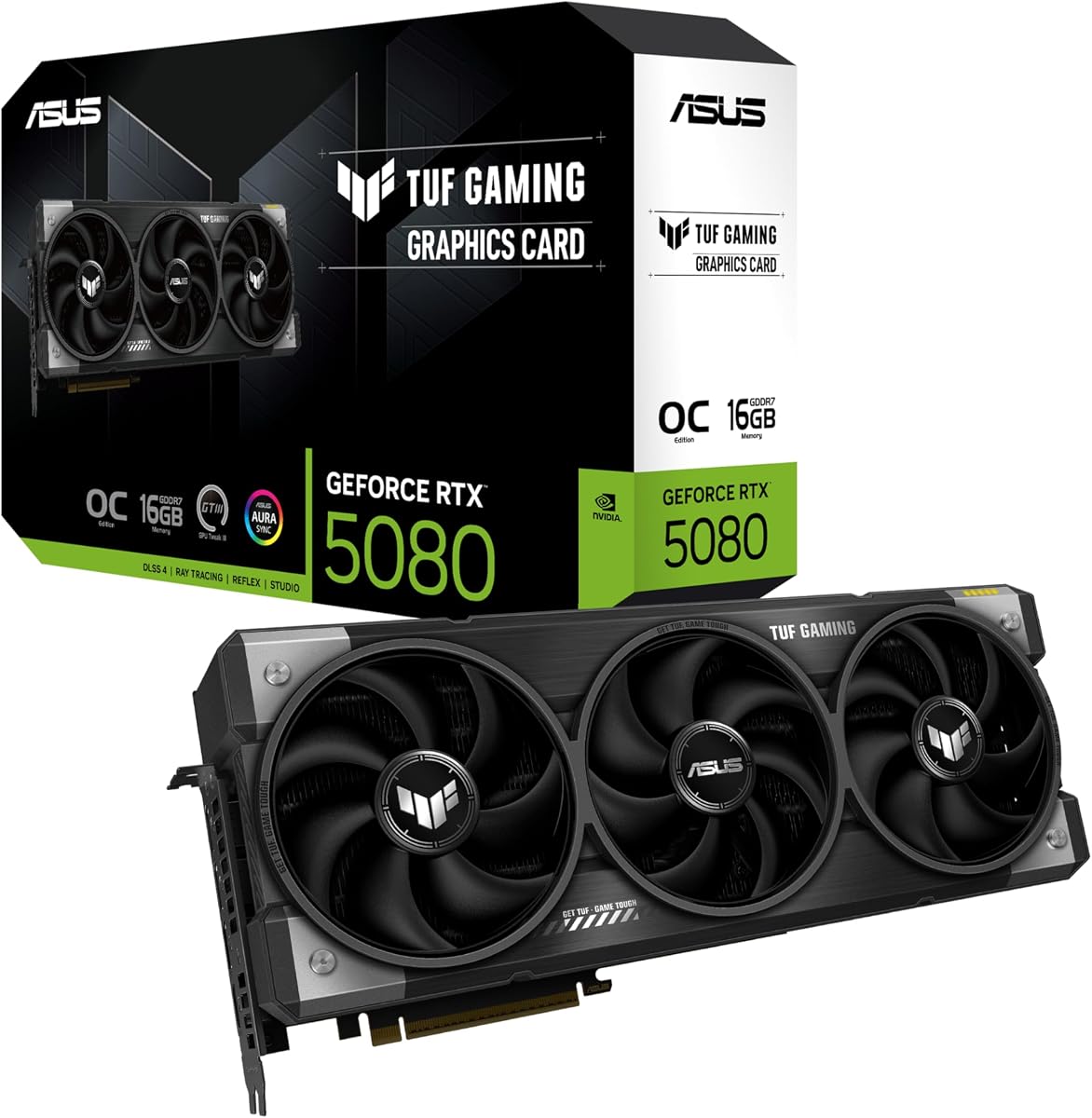
The ASUS TUF Gaming GeForce RTX 5080 16GB is built for buyers who want substantial cooling capacity and a durable desktop implementation of the RTX 5080. Its 4.6 customer rating complements a specification sheet centered on airflow, thermal management, component quality, and long-running stability.
We may earn a commission when you buy through this link, at no additional cost to you.
Three Axial-tech fans feed a massive fin array within a 3.6-slot design. A phase-change GPU thermal pad is designed to maintain performance during heavy loads, while the protective PCB coating guards against short circuits caused by moisture, dust, or debris. The factory clock reaches 2730 MHz in OC mode, and GPU Tweak III provides performance, thermal, and monitoring controls.
This is not a compact option. Its listed length is 348mm, it is 13.7 inches long, and the stated system requirement calls for a minimum 850W power supply with a 16-pin 12V-2×6 connector. The card also has a 3.6-slot width that can obstruct neighboring connectors or expansion cards. Its 16GB VRAM capacity also shares the same fundamental limitation as the other RTX 5080.
For a spacious, high-power workstation that will run long ComfyUI sessions, the TUF's cooling focus makes it a compelling RTX 5080 option. It is best suited to users who can accommodate its size and power requirements and who value thermal headroom over compactness. Check the exact connector orientation and case clearance, and make sure the power supply has the specified cable available.
A three-fan cooler and phase-change thermal pad are especially relevant when an image-generation queue keeps the GPU loaded for extended periods. The larger thermal design is intended to sustain performance rather than optimize only for short bursts.
GPU Tweak III lets users inspect temperatures, clocks, and fan behavior while the job is running. Combined with military-grade components and PCB coating, it offers useful tools for a system expected to remain active during lengthy creative sessions.
We may earn a commission when you buy through this link, at no additional cost to you.
The GIGABYTE Radeon RX 9070 XT Gaming OC 16G is one of the strongest AMD alternatives in this roundup. Its 4.7 rating, 16GB of GDDR6 memory, and PCIe 5.0 interface make it a credible option for creators who already have a compatible AMD-centered software setup.
We may earn a commission when you buy through this link, at no additional cost to you.
The WINDFORCE cooling system and Hawk fan design provide the physical cooling foundation for sustained graphics workloads. Server-grade thermal conductive gel helps manage heat transfer within the card, while RGB lighting adds a cosmetic element for visible desktop builds. The 16GB memory pool gives this model similar headline capacity to several NVIDIA alternatives.
The major consideration is ComfyUI compatibility. While major generative-AI frameworks support multiple hardware backends, individual custom nodes, quantized checkpoints, upscalers, and workflow templates may behave differently on AMD. DirectML, ROCm, and supported PyTorch paths each have different capabilities, so users should confirm the exact combinations they plan to use rather than assuming interchangeability.
The RX 9070 XT is most attractive to builders who have already validated AMD acceleration for their workflow or want a second platform that is not dependent on the NVIDIA ecosystem. It is less suitable as an impulse purchase for a first ComfyUI machine where broad node compatibility and extensive community troubleshooting are priorities. Verify software support before purchasing and keep the operating-system and driver stack current.
A 16GB Radeon card can provide a practical alternative when supported software is sufficient for the intended workflow. This makes the model interesting for experienced users who want to avoid relying exclusively on one GPU vendor's software stack.
WINDFORCE cooling and thermally conductive gel provide a solid foundation for generation, editing, and gaming in one system. Those qualities are useful for builders who will not use the card exclusively for ComfyUI jobs.
We may earn a commission when you buy through this link, at no additional cost to you.
The ASUS Dual Radeon RX 9060 XT 16GB is the budget-focused selection in this guide because its most important ComfyUI feature is simple: 16GB of graphics memory in a relatively compact card. It shares the highest listed rating at 4.7, which makes it an appealing entry point for creators who prioritize memory capacity over premium accelerator features.
We may earn a commission when you buy through this link, at no additional cost to you.
The dual-fan design uses axial-tech fans with a smaller hub and longer blades, while the 2.5-slot chassis preserves room for airflow without demanding a full-size multi-fan body. The dual BIOS switch provides Quiet and Performance profiles, and dual ball fan bearings are listed as lasting up to twice as long as sleeve-bearing designs. Factory clocks reach up to 3250 MHz in OC mode.
As with the RX 9070 XT, AMD compatibility is the key qualification. Check current support for your operating system, PyTorch backend, checkpoint formats, and custom nodes before committing. The card also lacks ECC and hardware partitioning, and its lower-tier position means it will not match more expensive hardware for demanding multi-model graphs or very high throughput. System RAM and storage should be adequate to complement the GPU.
This is the best budget pick for a user whose workflows fit inside 16GB and who has confirmed the necessary AMD acceleration path. Its compact design, quiet mode, and strong rating make it particularly pleasant for a compact creation PC. If your workflow depends on NVIDIA-specific operators or exceeds 16GB comfortably, move up to one of the higher-tier NVIDIA alternatives instead.
The defining advantage is not the highest compute tier but the combination of 16GB memory and a restrained physical design. That makes it a sensible way to build a ComfyUI machine without committing to a large professional workstation card.
The Quiet BIOS and 0dB behavior under light loads are useful during editing and model preparation. Users can then switch to the Performance profile when a generation queue justifies greater fan activity.
We may earn a commission when you buy through this link, at no additional cost to you.
The ASUS TUF Gaming GeForce RTX 5070 12GB is a modern NVIDIA option with strong customer feedback and a robust cooling design. Its 4.7 rating suggests broad user satisfaction, while Blackwell architecture and DLSS 4 support place it firmly within the current generation of hardware.
We may earn a commission when you buy through this link, at no additional cost to you.
Three Axial-tech fans cool a massive fin array in a 3.125-slot design. Other practical details include military-grade components, a protective PCB coating, a phase-change thermal pad, ASUS GPU Guard, and GPU Tweak III software for tuning and monitoring. Its OC mode is listed at 2640 MHz, compared with a 2610 MHz default boost clock.
The decisive limitation for ComfyUI is 12GB of VRAM. That is enough for many lightweight and standard workflows, but it leaves less room than the 16GB alternatives for upscaling, multiple auxiliary models, control branches, and larger checkpoints. The card's size also means it is not as easy to install as a genuinely compact dual-slot model.
Choose the TUF RTX 5070 when your workflow is known to fit within 12GB and you want the NVIDIA ecosystem with a substantial cooling system. It is a sensible mixed-use graphics card for creators who also value gaming features and DLSS 4. For more demanding ComfyUI work, however, a 16GB card is usually the safer purchase, so this model makes the most sense as an entry point rather than a high-memory solution.
Blackwell architecture, DLSS 4, and a listed OC mode position this card as a modern platform. The familiar NVIDIA ecosystem also simplifies support planning for many ComfyUI extensions and PyTorch-based tools.
The protective PCB coating, phase-change thermal pad, and three-fan cooler make the TUF design well suited to extended workloads. These features do not remove the memory-capacity ceiling, but they help the card remain stable during continuous use.
We may earn a commission when you buy through this link, at no additional cost to you.
The ASUS Dual GeForce RTX 5050 8GB is a compact, entry-oriented option for experimenting with ComfyUI or running workflows that fit comfortably within 8GB. Its 4.3 rating is respectable, and the two-slot SFF-ready design makes it easier to accommodate than large triple-fan cards.
We may earn a commission when you buy through this link, at no additional cost to you.
Despite its position in the range, the card uses the NVIDIA Blackwell architecture, supports DLSS 4, and lists 433 AI TOPS. Factory clocks reach 2677 MHz in OC mode and 2647 MHz in default mode. ASUS adds a dual BIOS switch, 0dB technology, axial-tech fans, dual ball fan bearings, and GPU Tweak III monitoring.
Eight gigabytes is the principal constraint. It can be enough for selected models and simpler graphs, but ComfyUI's memory use can rise quickly when text encoders, VAEs, control models, and upscalers are involved. If the workload exceeds VRAM, data may need to move to system memory, reducing responsiveness and making the rest of the PC more important.
Buy this card for experimentation, a space-conscious mixed-use PC, or a workflow already proven to fit within 8GB. For regular production work, especially with SDXL or several auxiliary models, a 16GB card provides a much safer margin. The RTX 5050's main advantage is its compact, accessible platform rather than maximum ComfyUI flexibility.
The two-slot SFF-ready format is valuable in compact cases where a large graphics card would restrict airflow or force major compromises. It can serve as a practical experimentation platform when memory use remains modest.
Blackwell architecture, DLSS 4, a quiet BIOS, and GPU Tweak III provide useful features despite the card's entry-level memory. The option is best treated as a capable compact GPU rather than a solution for large local models.
We may earn a commission when you buy through this link, at no additional cost to you.
The PNY NVIDIA GeForce RTX 5060 OC Dual-Fan is a compact GeForce option aimed at builders who want a straightforward NVIDIA platform without a large triple-fan cooler. Its 4.4 rating indicates a generally favorable reception, while the dual-fan construction gives it broad chassis flexibility.
We may earn a commission when you buy through this link, at no additional cost to you.
The card uses the NVIDIA Blackwell architecture with fifth-generation Tensor Cores and fourth-generation ray-tracing cores. Its factory-tuned boost clock is 2535 MHz, and VelocityX software lets users tune core and memory clocks, create fan curves, monitor temperature and speed, and save multiple profiles. The compact two-fan cooler is designed to dissipate heat without requiring the depth of a full-length high-end card.
The supplied product information does not state the memory capacity or memory type, so buyers should not assume parity with the 16GB cards elsewhere in this guide. That matters because ComfyUI performance can be constrained by memory before raw compute is exhausted. The card also does not list workstation isolation features such as MIG, and its smaller two-fan design may offer less thermal headroom than larger RTX models during prolonged generation.
Choose the PNY RTX 5060 OC when compact dimensions, a modern NVIDIA architecture, and user-adjustable performance are priorities. It may suit a mixed-use system or a lighter ComfyUI installation, but buyers should first confirm the exact memory specification on the current listing. For serious image-generation work, ensure the confirmed capacity matches the model and workflow you expect to run.
Two fans working together can provide effective cooling in a smaller enclosure without the footprint of a large triple-fan accelerator. This makes the card useful in builds where physical clearance is a primary constraint.
VelocityX provides direct control over clocks and fan behavior and can store several profiles. Creators can keep a quiet setup for routine tasks and switch to a more aggressive profile during intensive generation.
We may earn a commission when you buy through this link, at no additional cost to you.
The best GPU for ComfyUI is not necessarily the fastest card in a benchmark. Memory capacity, software compatibility, sustained cooling, power requirements, and workflow design should guide the decision.
VRAM is often the first constraint encountered in ComfyUI because the workflow may need to hold model weights, text encoders, latent tensors, VAEs, control models, and upscalers concurrently. A card with 16GB is generally more flexible than an 8GB option, while 24GB and 96GB configurations provide meaningful headroom for larger models and multi-stage graphs. Memory capacity also influences whether weights must be offloaded to system RAM, which can reduce responsiveness and increase overall system requirements.
Choose enough VRAM for your actual model and node combination, then leave additional room for experimentation. Larger is better when the budget and power supply allow, but unused capacity provides little benefit if software support, thermals, or memory bandwidth are inadequate.
Tensor Cores, matrix engines, and listed AI TOPS values indicate that a GPU includes hardware intended to accelerate neural-network operations. These features are more relevant to ComfyUI than traditional 3D gaming scores because diffusion workflows perform large numbers of matrix calculations. Architecture also affects supported precision formats, quantization paths, and the efficiency of different model operations.
Prioritize AI capabilities alongside memory rather than treating TOPS as the only measure. Software support determines whether the hardware can be used efficiently, and the workload's precision requirements can influence which acceleration path provides the greatest benefit.
Memory bandwidth controls how quickly the GPU can read weights and write intermediate tensors. GDDR7 configurations with a wide bus, such as the 256-bit RTX 5080 design listed here, are well positioned to feed large compute arrays efficiently. The Intel Arc Pro B60 combines a 192-bit bus with 456 GB/s of stated bandwidth, while the workstation RTX PRO 6000 advertises 1.8 TB/s.
Compare bandwidth together with capacity and compute throughput. More bandwidth helps feed the GPU efficiently, but it cannot compensate for a memory pool that is too small to hold the required workload.
ComfyUI's effectiveness depends on the operating system, PyTorch backend, GPU driver, model format, custom node, and quantization method. NVIDIA cards generally have the broadest established support in the ecosystem, while AMD and Intel options may work well for particular workflows but require more careful validation. Check whether the nodes you need support the selected backend before purchasing, especially when using less common upscalers, LoRA formats, or custom compilation paths.
Use a known-good software stack and update it consistently. A theoretically powerful GPU is less valuable if an essential node fails to install, falls back to the CPU, or produces unstable results.
A generation queue can keep a GPU under load for much longer than a gaming benchmark. Axial-tech fans, multi-fan fin arrays, phase-change thermal pads, blower coolers, and workstation cooling designs can all help maintain stable clocks during extended jobs. Conversely, compact cards may be easier to install but offer less thermal headroom. Consider noise as well as temperature, since unattended rendering in a home office can be distracting.
Match the cooling design to workload duration and case airflow. For long queues, prioritize a card with a substantial cooler and enough case clearance for intake and exhaust air rather than focusing only on peak boost clocks.
GPU power requirements determine whether a card can safely run at its intended performance. The ASUS TUF RTX 5080 lists a minimum 850W power supply and a 16-pin 12V-2×6 connector requirement, while the Intel Arc Pro B60 lists a 200W TDP and a single eight-pin connection. Check connector type, cable availability, case clearance, motherboard slot spacing, and whether a multi-GPU build requires additional lanes or power.
Do not rely on the GPU's power connector alone to determine compatibility. Confirm the complete system power budget and leave sensible headroom for processor, memory, storage, and transient loads.
Workstation cards can provide ECC memory, hardware partitioning, professional drivers, long-warranty terms, and features designed for concurrent workloads. The RTX PRO 6000's Universal MIG can divide one accelerator into isolated instances, while the Intel Arc Pro B60 emphasizes professional drivers, ISV certification, and multi-GPU scalability. Gaming cards often prioritize graphics performance, features such as DLSS 4, and a lower physical footprint.
Select workstation features when uptime, isolation, or professional software support matters. For a personal ComfyUI workstation running one user and one workflow, mainstream gaming cards can provide a more practical balance of capability, size, and cost.
Before installing the GPU, update the operating system and graphics driver, confirm that the case has adequate clearance, and verify the power supply and required cable. Connect the card according to the manufacturer's instructions, secure the power connector fully, and ensure that the case's intake and exhaust paths are unobstructed. Do not use a daisy-chained or substitute power connection unless the card and power supply documentation explicitly permits it.
Install ComfyUI in a stable Python environment and follow the backend instructions appropriate for the selected GPU. Begin with a small, proven checkpoint and a simple workflow before loading custom nodes or large models. Monitor VRAM use, GPU temperature, fan speed, frame generation time, and whether jobs unexpectedly fall back to the CPU. Use lower resolutions, smaller batches, or fewer simultaneous models when memory pressure appears.
For long unattended jobs, update software before starting and avoid changing drivers or packages mid-session. Keep the card and power connectors free of dust, preserve airflow around the cooler, and do not silence fans unless the workload and temperatures remain safe. Save custom nodes and models separately, back up important workflows, and periodically export working graphs so a software update or hardware issue does not erase the setup.
At least 8GB can handle lighter workflows, but 16GB is a much more practical starting point for modern image-generation use. Models, text encoders, control networks, VAEs, and upscalers may all compete for memory at the same time. A 24GB or 96GB card is more appropriate when running large models, multiple branches, or production workflows without offloading. Choose based on your busiest graph rather than a single model file.
NVIDIA currently offers the broadest and most familiar compatibility across ComfyUI, PyTorch, and many popular custom nodes. AMD Radeon cards can still be capable when the operating system, backend, checkpoint format, and required nodes are supported. AMD may also provide attractive memory capacity at lower cost. Users should verify their exact software stack, especially if they depend on uncommon quantization methods or custom CUDA-oriented nodes.
No. Many ComfyUI workflows run well on capable gaming graphics cards with 16GB of memory. A workstation GPU becomes more attractive when you need substantially more memory, ECC, hardware isolation, professional drivers, or support for concurrent production workloads. The RTX PRO 6000 in this guide is designed for large local AI projects, while the RTX 5080 and RTX 5060 Ti options are more conventional choices.
More memory improves speed indirectly when it prevents the workload from exceeding VRAM and forcing data to move to system RAM. It does not automatically make every operation faster, and raw compute throughput, memory bandwidth, software optimization, and model architecture remain important. The best upgrade depends on whether your current bottleneck is memory capacity, transfer overhead, or compute performance.
Yes, as long as the card is physically compatible and the workflow is appropriate for its memory capacity. The ASUS Dual RTX 5050 and PNY RTX 5060 OC are compact dual-fan options, while the ASUS RTX 5060 Ti uses a 2.5-slot design. Check card length, height, slot width, power connectors, and case clearance. A small case also needs adequate cooling for sustained generation.
An 8GB GPU can be sufficient for selected models and simpler ComfyUI graphs, particularly when memory use is carefully managed. It becomes restrictive with upscalers, multiple LoRAs, control models, high-resolution outputs, or larger diffusion models. A 16GB card is generally safer for sustained experimentation and production, while larger-memory professional cards suit advanced local AI work.
Possibly. A card's stated wattage and connector requirements must be checked against the power supply's capacity and available cables. The ASUS TUF RTX 5080 specifically lists a minimum 850W PSU and a 16-pin 12V-2×6 connector. Also consider the processor and other powered components. Never bend or alter connector cables in ways that violate the manufacturer's guidance.
Use the monitoring software included with the card when available, or a trusted system monitoring utility. Watch temperature, fan speed, memory use, clock behavior, and job progress for signs of instability or throttling. Ensure the case has adequate airflow and that the power connection is secure. If a job fails repeatedly, reduce batch size or resolution and update the driver and ComfyUI environment before assuming the GPU is defective.
The ASUS Dual GeForce RTX 5060 Ti 16GB is the most balanced general recommendation because it combines 16GB of GDDR7 memory, modern Blackwell AI hardware, a 2.5-slot design, and a strong customer rating. The ASUS Dual Radeon RX 9060 XT 16GB offers a budget-focused alternative for validated AMD workflows, while the NVD RTX PRO 6000 Blackwell is the premium choice when 96GB of ECC memory and professional workload isolation are worth the substantial system requirements.
For every other build, prioritize the model and workflow before the badge. A 16GB card is generally more useful than a faster 12GB card for ComfyUI, 24GB expands the practical range of local models, and compact designs are valuable only when they still meet memory and thermal needs. Confirm backend and custom-node compatibility, then ensure the chassis and power supply can support the selected accelerator.
Specifications and customer ratings provide a strong starting point, but prices, stock, driver packages, and bundle contents can change. Review the current product listing before purchasing, check the exact model identifier and memory specification, and compare the latest cost with the complete PC requirements. The right GPU is the one that fits both your ComfyUI workflow and the system you can realistically build.
