
darkFlash V92 9.2 Inch PC Case Screen
4.1Editor score
1920×462 ultrawide resolution
USB-C or 9-pin connection
Free Station Space software
An LCD screen for a PC case can turn an otherwise empty interior or front panel into a useful source of system information, decorative visuals, and added personality. The right model depends on panel shape, resolution, connection method, mounting system, software support, and whether you want a sensor display or a conventional secondary monitor.
This guide compares ten LCD screens for PC cases across the factors that most affect everyday usefulness. It covers display dimensions, aspect ratios, resolutions, USB and video connectivity, touch support, hardware-monitoring functions, case compatibility, mounting hardware, operating-system requirements, and the degree of customization each product offers.
Each pick demonstrates a different approach, from compact sensor panels to wide touch displays made for prominent case panels. The ratings and specifications shown reflect the supplied product information, while availability and prices change over time. Always verify connector types, case clearances, and software requirements before ordering.
4.1Editor score

4.5Editor score

4.2Editor score
As an Amazon Associate we earn from qualifying purchases.
The comparison below highlights each LCD screen's physical size, display format, connection approach, and principal strength so buyers can identify the model that best matches their case and desired functions.




The Lian Li SM088X is an 8.8-inch universal LCD screen built to combine system information, personal media, and coordinated lighting in a PC build. Its supplied rating is 4.4, placing it among the stronger choices in this guide. The major attraction is the diffused ARGB frame, which turns an otherwise functional sensor panel into a visible centerpiece.
We may earn a commission when you buy through this link, at no additional cost to you.
This display can operate as a USB-powered secondary screen through either a 9-pin connection or Type-A USB, avoiding the need to occupy a graphics card's video outputs. L-Connect 3 provides preset themes, modular information fields, and the ability to upload personal videos and photos. Custom layouts can also switch temperature readings between Celsius and Fahrenheit, while preset templates use fixed units.
Installation is more flexible than the name may initially suggest. The supplied bracket supports height and tilt adjustments and can attach to a fan frame, a case panel, or a flat surface with adhesive pads. Buyers must follow the guide carefully, however, because the specified H screws should be used for the screen stand and universal screen rather than the longer screws marked G.
This is a strong recommendation for builders who want more visual personality than a plain sensor panel can provide. It is particularly attractive when Lian Li's L-Connect ecosystem is already part of the build or when coordinated ARGB lighting is a priority. Those who prefer a self-contained display without manufacturer-specific control software should examine the more conventional monitor-style alternatives.
Because the SM088X can draw power and data through a motherboard USB connection, it does not need a dedicated graphics output. That makes it practical for showing temperatures, utilization figures, media, or custom visuals while leaving valuable display connectors free.
The diffused ARGB strip provides an immediate visual benefit beyond information display. Through L-Connect 3, users can coordinate its color and effects with a broader system lighting setup, making the panel more suitable for exposed installations.
We may earn a commission when you buy through this link, at no additional cost to you.
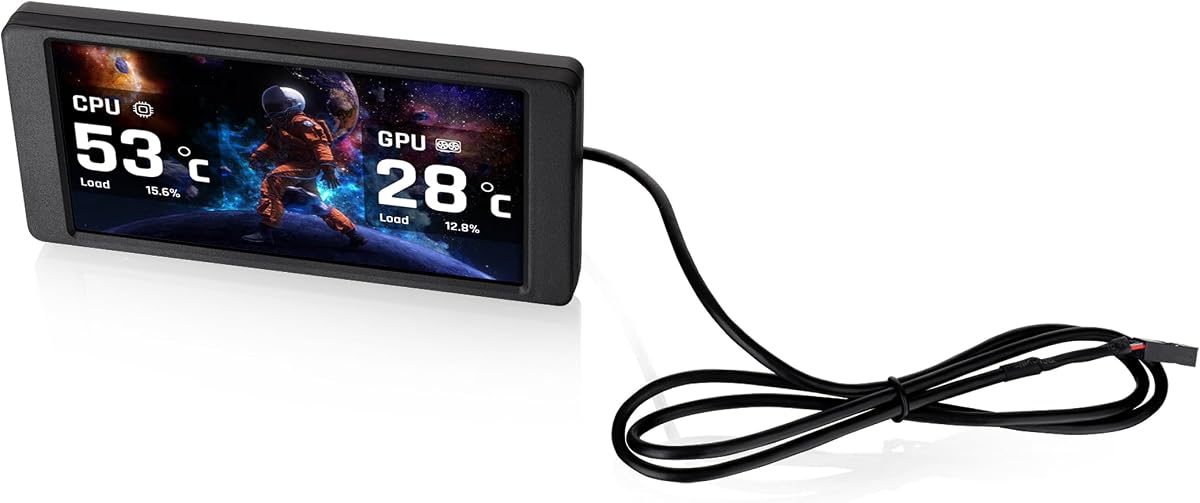
The darkFlash V92 is a 9.2-inch case sensor panel with a 1920×462 IPS display and a supplied rating of 4.1. It is designed specifically for showing PC information rather than serving as a normal extended monitor, giving it a clear purpose within enthusiast and workstation cases.
We may earn a commission when you buy through this link, at no additional cost to you.
Station Space software can present CPU and GPU temperatures, utilization, RAM information, fan speeds, clocks, weather, and custom widgets. Users can also display JPG, GIF, and MP4 content. The supplied information says no AIDA64 setup is required for the core functions, although the application itself must remain running for the screen to operate as described.
Connectivity is refreshingly practical. The panel can use an external USB port or a motherboard USB 2.0 9-pin header, and both USB cables are included. This arrangement avoids consuming HDMI or DisplayPort outputs on a graphics card. The slim aluminum body measures 242.4 by 63.1 by 12 millimeters, making it relatively shallow for internal placement.
The V92 is well suited to builders who want broad sensor information and customization without moving to a larger display. Its clear limitations are its dependence on Windows 10 or 11 and the requirement that Station Space remain active. Prospective buyers should also check the stated 9.54 by 2.48 by 0.47-inch clearance against their ATX, micro-ATX, or ITX enclosure.
The unusually wide 1920×462 format suits dashboard-style layouts. Temperature, utilization, memory, fan speed, clock data, weather, news, and custom widgets can be organized into a single information surface without the proportions of a conventional desktop monitor.
Using a motherboard 9-pin header keeps graphics outputs untouched and reduces the need for long HDMI cables inside the chassis. An external USB-C option is also helpful for initial setup or temporary placement outside the case.
We may earn a commission when you buy through this link, at no additional cost to you.
The WOWNOVA 8 Inch display has a supplied rating of 4.5, the highest among the products considered. It combines a conventional 1280×800 IPS panel with a sensor-focused interface, dynamic themes, and an extended desktop mode. That combination makes it one of the most adaptable options for an internal PC installation.
We may earn a commission when you buy through this link, at no additional cost to you.
Its software can present CPU, GPU, and RAM temperatures, usage, frames per second, and HDD information. Users can select preset dynamic videos, build a visual theme editor, drag interface elements into position, and customize the layout. Desktop mode adds a separate use for the display when it is not being used as a dedicated hardware dashboard.
Installation is designed around simplicity. A single USB-C cable or a single 9-pin connection provides data and power without requiring a GPU port, and no separate HDMI or power lead is necessary. The IPS panel offers wide viewing angles, while the aluminum housing measures 7.52 by 4.59 inches overall and only 0.39 inch thick.
This is our top overall recommendation for builders who want more than a basic temperature display. The desktop mode, strong rating, and theme tools give it more flexibility than many dedicated sensor panels. It is best suited to Windows 10 or 11 systems, and the white enclosure may complement some case interiors better than others.
Most case screens specialize in hardware monitoring. The added desktop mode broadens the WOWNOVA's appeal by allowing it to function as an extended display, making it useful for monitoring utilities, media, or additional information while the main display remains occupied.
The single-cable approach simplifies cable management inside the chassis. A USB-C cable or motherboard 9-pin connection can handle the panel's requirements, reducing visual clutter and avoiding an HDMI cable routed around internal components.
We may earn a commission when you buy through this link, at no additional cost to you.
The wisecoco 12.6 Inch Bar LCD Screen is a large secondary display tailored to the Hyte Y60 case. Its supplied rating is 4.2, and its defining features include a 1920×515 IPS panel, built-in speakers, and a bracket designed to fit the Y60's case panel.
We may earn a commission when you buy through this link, at no additional cost to you.
Display performance is specified at a 3–5 millisecond response time, 60Hz refresh rate, 178-degree viewing angle, and 1000:1 contrast ratio. The elongated resolution suits dashboard information, application windows, media, and other content that benefits from a wider format. Its larger screen also gives more room for readable labels and multiple simultaneous widgets.
The supplied package includes the screen, a 3.5-millimeter DC cable, an HDMI-to-mini-HDMI cable, and a screwdriver. Users connect the mini HDMI input to a video source, power the panel through the DC connection, and mount it to the Y60 without additional screws. A micro USB Type-A option is also possible, though that cable is not included.
Power requirements deserve attention: the DC input is specified at 5V and 2A, while the micro USB Type-A route requires 5V and 500mA. This is an excellent choice for a Y60 build that needs a prominent, functional display, but it is less convenient for cases without an accessible video source or the required power routing.
At 12.6 inches, the screen offers a substantially larger canvas than compact sensor panels. The 1920×515 format is particularly effective for monitoring dashboards, media playback, and horizontally oriented applications.
The included Y60-specific bracket and screwdriver simplify what could otherwise be a difficult installation. Owners can position the display against the case panel without sourcing extra mounting screws.
We may earn a commission when you buy through this link, at no additional cost to you.
The Hosyond 8.8 Inch is a compact touchscreen display with a supplied rating of 4.0. It supports HDMI input, capacitive touch control, and a driver-free setup, allowing it to serve as a small secondary screen for a PC, Raspberry Pi, or other compatible source.
We may earn a commission when you buy through this link, at no additional cost to you.
Its 1920×480 panel is optimized for a wide internal layout. Brightness is specified at up to 520 cd/m², while the IPS technology provides a wide viewing angle and stable color reproduction. The touchscreen adds interactive possibilities that passive sensor panels generally cannot offer.
The display can be used with AIDA64 to show CPU and GPU information inside a case, but the supplied information notes that AIDA64 must be downloaded by the user. Compatibility also extends to Raspberry Pi, Banana Pi, BeagleBone Black, PS4, Xbox 360, TV boxes, and digital cameras used for display output. Power comes through 5V USB Type-C at a stated 3.8W consumption.
This is a good option for a builder who values touch input and broad source compatibility more than an all-in-one monitoring dashboard. Its listed operating environments include Raspbian, Ubuntu, Kali Linux, Kodi, and several Windows versions. Because it does not present sensor information through dedicated case-screen software, setup takes more individual configuration.
The capacitive touchscreen adds direct control in a form factor that most PC case screens omit. This makes the panel useful for compact dashboards, simple kiosk functions, or media and utility interfaces where tapping is more convenient than mouse input.
A maximum brightness of 520 cd/m² can help maintain visibility when the panel is viewed through tempered glass or positioned under less favorable internal lighting. The wide IPS viewing angle also reduces the chance of washed-out information from side positions.
We may earn a commission when you buy through this link, at no additional cost to you.
The Thermalright Trofeo Vision LCD AIO Display is a 9.16-inch wide panel with a supplied rating of 4.3. It combines a 1920×480 resolution with TRCC software, providing a focused dashboard for CPU and GPU temperatures, fan speed, memory usage, and other performance information.
We may earn a commission when you buy through this link, at no additional cost to you.
TRCC includes multiple preset themes and DIY customization options, allowing the screen to become a dedicated system-information surface. Plug-and-play USB Type-C connectivity is designed for straightforward setup with most Windows systems, while the slim 251 by 68 by 17 millimeter enclosure makes the panel relatively easy to accommodate inside or outside a case.
This display sits between a bare monitor and a deeply integrated case accessory. It is not tied to one chassis model, but it does rely on the manufacturer's TRCC application for its monitoring and theme functions. That makes the software a central part of the ownership experience rather than an optional extra.
The Trofeo Vision LCD is well suited to builders seeking a neat sensor display with uncomplicated external connectivity. Its relatively low power requirement and compact dimensions are helpful for internal installations. Those who need touch input, a broad device ecosystem, or a conventional extended-monitor workflow should consider a different design.
The wide format creates an effective strip for temperature, load, fan speed, and memory data. Displaying the information on a dedicated panel can reduce the need to keep a full-size monitor visible during routine system checks.
At 251 by 68 by 17 millimeters, the screen has a restrained footprint that suits narrow case regions. Its USB Type-C connection also simplifies placement when the panel is temporarily positioned on a desk.
We may earn a commission when you buy through this link, at no additional cost to you.
The Thermaltake 6.0 Inch LCD Screen Kit is designed for compatibility with the View 370 and View 390 chassis series. It has a supplied rating of 3.8 and a 1480×720 display, offering a compact dashboard and decorative surface within supported cases.
We may earn a commission when you buy through this link, at no additional cost to you.
TT RGB Plus 3.0 expands the interface with improved customization, monitoring, and control features. The screen can display real-time CPU, GPU, and RAM information, including configurable frequency, load, and temperature fields. It also supports six default backgrounds and up to 20 uploaded graphics.
Uploaded media can include JPG, GIF, PNG, MP4, MOV, and AVI files, with each file limited to 30MB. The Type-C-to-9-pin connection and standalone operation make it possible to use the panel independently of another display while still receiving system information through a motherboard USB connection.
The principal compromise is case specificity. Buyers without a compatible Thermaltake View 370 or View 390 should look elsewhere, since the mounting and integration are the main appeal. Within those systems, the panel provides a polished way to combine live performance data with personal imagery and existing RGB controls.
The display can alternate between practical sensor information and personal visual content. This makes it suitable for users who want the case to look distinctive when idle and informative when checking temperatures, loads, or clock values.
Compatibility with the View 370 and View 390 series means buyers can integrate the screen without treating it as a generic panel requiring improvised mounting. Its dedicated 9-pin connection also fits the internal design of supported chassis.
We may earn a commission when you buy through this link, at no additional cost to you.
The GeeekPi 12.6 Inch display combines a large 1920×515 IPS panel, capacitive multi-touch, and built-in speakers in a package tailored for the Hyte Y60. Its supplied rating is 4.0, and its hardware-focused features make it suitable for users who want more direct interaction than a conventional sensor display provides.
We may earn a commission when you buy through this link, at no additional cost to you.
The panel supports up to 10 points of multi-touch and uses tempered glass. Its stated contrast ratio is 1200:1, while the IPS panel is designed to maintain color consistency across a broad viewing angle. A product wiki is also listed for additional setup information.
Unlike dedicated monitoring panels, the display is presented as a plug-and-play secondary screen compatible with Windows 7, 8, and 10 as well as macOS. Horizontal and vertical display settings can be adjusted, and no additional software is required for basic operation. The included screwdriver supports installation in the Y60 without extra screws.
This model is a compelling choice for Y60 builders who want a large touchscreen and integrated audio. One immediate installation note is that a protective film covers the screen and should be removed before use. Owners of other cases should verify dimensions and mounting options before considering this display.
Ten-point multi-touch allows more natural interaction than a single-touch panel. It can improve the experience of compact utility interfaces, media controls, and touch-oriented applications placed within a case.
The pair of built-in speakers gives the display useful audio output without requiring separate desktop speakers. That convenience is useful in compact builds where every cable and external accessory adds clutter.
We may earn a commission when you buy through this link, at no additional cost to you.
The Thermalright TV 9.16 is a 9.16-inch IPS display with a 1920×480 resolution and a supplied rating of 4.3. Its defining feature is a metal-frame magnetic mounting design that avoids screws and allows the panel to be removed or repositioned as needed.
We may earn a commission when you buy through this link, at no additional cost to you.
TRCC software supports real-time system parameter monitoring, static and dynamic image switching, video playback, and DIY personalized themes. The display can be controlled through the application, including monitoring and power functions, and software can start with the computer and remain in the taskbar background.
Internal power and data are supplied through the motherboard's 9-pin USB interface using a USB Type-C connector on the panel. The included dimensions are 251 by 68 by 17 millimeters, creating a long and narrow profile suited to compact or exposed internal installations.
The magnetic system is convenient, but it depends on a suitable metal surface and correct positioning. It is most appealing to builders who want to remove the screen for maintenance or move it to another viewable location. Those expecting a touch panel or a conventional video input should look elsewhere.
Magnetic attachment removes the need to drill holes or permanently fasten the panel. That makes installation cleaner and allows the display to move between compatible locations when the build or viewing arrangement changes.
The TRCC application supports monitoring layouts, dynamic images, static content, video, and custom themes. This gives the panel more variety than a fixed sensor readout and allows it to reflect the user's preferred visual style.
We may earn a commission when you buy through this link, at no additional cost to you.
The Thermalright Trofeo Vision LCD Black is a 6.86-inch full-color IPS display with a 1280×480 resolution and a supplied rating of 3.4. It offers a compact monitoring and personalization option for builders who want a small panel without committing to a larger secondary monitor.
We may earn a commission when you buy through this link, at no additional cost to you.
TRCC software supports system-parameter monitoring, multiple static and dynamic image selections, video playback, and DIY personalized themes. Its full-color IPS panel is designed to reproduce color accurately while maintaining stable viewing angles, an advantage for a small display mounted in an unconventional position.
The enclosure measures 187.2 by 72.1 by 21 millimeters. USB Type-C supplies power and data from the motherboard's 9-pin interface, after which the TRCC application controls monitoring and screen functions. The software can begin with the computer and remain active in the background.
Magnetic mounting lets the panel attach to compatible chassis surfaces or pair with the Trofeo Vision water-cooling radiator series. Its position is not fixed to one area, making it adaptable to different layouts. The lower rating and smaller resolution are the principal trade-offs, so buyers should confirm that the compact screen meets their readability needs.
The 6.86-inch size is suitable for builders with limited internal space. It can provide live system information and custom visuals without occupying the larger front-panel area demanded by some competing displays.
Magnetic attachment works with compatible case surfaces and the Trofeo Vision cooling series. Because the panel is not restricted to a fixed chassis location, it can be repositioned to suit visibility, cooling hardware, or temporary maintenance.
We may earn a commission when you buy through this link, at no additional cost to you.
Choosing an LCD screen for a PC case requires balancing panel dimensions, intended functions, available connections, and the physical space inside the chassis. The most useful display is one that fits the selected case, remains legible at its intended position, and connects without disrupting other components.
Panel size determines how much information can be shown without making text or controls too small. Compact models around 6 to 8 inches work well for narrow internal positions, while 9.16-inch and 12.6-inch screens offer more room for dashboards, media, and application windows. Resolution matters just as much: the 1920×480 and 1920×515 formats are optimized for long, horizontal layouts, whereas the WOWNOVA display uses a more conventional 1280×800 resolution suited to desktop-style use.
Choose a size that matches the viewing distance and available case space. Check the complete dimensions rather than relying only on the diagonal screen size.
Many case displays use unusually wide aspect ratios because the panels are intended to occupy a narrow strip. This shape works well for temperature, utilization, clock, fan, and memory readouts arranged horizontally. It is less suitable for editing software, documents, or any content that depends on a conventional rectangular workspace unless the product supports an extended desktop mode.
Match the panel shape to the content. Choose a standard desktop aspect ratio for productive multitasking, or a wide sensor format for compact monitoring.
A motherboard USB 2.0 9-pin header is often the cleanest way to power an internal PC case screen because it carries both data and power. Several products also accept USB Type-C, which can simplify external placement and initial setup. Dedicated software may still be required even when the physical connection is plug-and-play, so confirm what must be installed and whether the application must remain active.
Prefer a panel that supports the connection style already available in your system and that keeps graphics-card display outputs free.
Conventional secondary monitors need a video signal, commonly through HDMI or mini HDMI. The wisecoco 12.6-inch model uses mini HDMI and includes an HDMI-to-mini-HDMI cable, which makes it suitable for displaying anything the source computer outputs. Touchscreen products such as the Hosyond 8.8-inch also rely on HDMI, while dedicated sensor panels can often use USB data alone.
Decide whether you need a true extended display or only an information dashboard. The correct choice depends on the role rather than simply on screen resolution.
Case screens must account for the chassis layout, fan positions, radiator area, cable routes, and front-panel structure. Some products are explicitly designed for the Hyte Y60, while others require a particular mounting bracket. The darkFlash V92 includes a specified clearance requirement that should be measured before purchase. Magnetic models can be more flexible, but they still need a suitable metal surface and enough depth for the enclosure.
Measure the intended location and check the included bracket, screw type, panel thickness, and connector orientation before purchasing.
Sensor-focused software determines which readings appear and how often they refresh. Station Space supports temperatures, utilization, RAM, fan speeds, clocks, weather, news, stock widgets, and media, while TRCC emphasizes system parameters, preset themes, DIY layouts, and dynamic content. WOWNOVA adds customizable interfaces, dynamic video themes, and desktop mode. These applications are not interchangeable, so buyers should compare the specific widgets and customization options they care about.
Verify the operating-system requirement and whether the software must remain running for the display to function.
Touch support can make a small screen easier to operate for controls, utilities, and kiosk-style interfaces. The Hosyond model uses a capacitive touchscreen, while the GeeekPi model supports up to 10 points of multi-touch. Built-in speakers add another layer of usefulness: both the wisecoco and GeeekPi panels include them, allowing audio without separate desktop speakers. These features expand functionality but can increase power and cable requirements.
Add touch or built-in audio only when your intended use genuinely benefits from them; otherwise, a simpler sensor display may reduce installation complexity.
ARGB lighting can help an exposed panel blend into the rest of a coordinated build. The Lian Li SM088X includes a diffused ARGB strip controllable through L-Connect 3. Other displays rely on their content for visual impact, allowing custom themes, animations, or images to provide color instead. The appropriate choice depends on whether lighting synchronization or graphic customization is your priority.
Consider the rest of the case's lighting ecosystem and confirm which control software or hardware synchronization each display supports.
Begin by planning the screen's position, cable route, and viewing angle before installing it permanently. Measure the available clearance, identify whether the mount uses screws, brackets, or magnets, and confirm that the selected USB or video connector is accessible. Remove any protective film only when the display is ready for use, and avoid pressing on the panel surface.
For USB-connected sensor displays, install the required monitoring application and confirm that system data is visible before mounting the panel permanently. For HDMI displays, connect the appropriate video cable and power source, then select the correct input or configure the computer to use the second screen. A short test outside the case can help verify the display, software, and cable before the final installation.
After installation, keep ventilation paths clear, route cables away from sharp edges and hot components, and avoid pulling on connectors. Update the display software when updates are available, back up custom themes or uploaded media, and clean the surface with a soft, lint-free cloth. Periodically check mounting stability and internal cable clearance, especially after moving the case or changing internal components.
Yes, if the product uses a USB-based sensor interface. Models such as the darkFlash V92, WOWNOVA 8 Inch, and the Thermalright displays can receive data through a motherboard 9-pin USB header or compatible USB Type-C connection. Conventional secondary monitors and touchscreens generally require HDMI or another video input, so check the product's connection specifications before installation.
No. Most require companion software, and the level of automation varies. Station Space and TRCC can display supported system parameters, while WOWNOVA's software provides sensor views and desktop mode. The Hosyond display can show hardware information through AIDA64, but AIDA64 must be downloaded separately by the user. Confirm the required application and its operating-system support before buying.
Compare the product's overall dimensions with the free area inside the case, including depth and cable clearance. The darkFlash V92 provides a specific clearance figure, while the wisecoco and GeeekPi products are designed around the Hyte Y60. Measure the mounting area, check the bracket type, and confirm that the USB or HDMI cable can reach without being sharply bent.
Some can, but not all. The WOWNOVA 8 Inch includes extended desktop mode, and the wisecoco and GeeekPi screens are designed as secondary displays with video inputs. Dedicated sensor panels such as the darkFlash V92 are not standard extended monitors. If desktop windows and ordinary applications are important, select a video-input display rather than a USB-only information panel.
It can be useful for compact controls, utilities, media applications, and kiosk-style interfaces. The Hosyond 8.8 Inch offers capacitive touch, while the GeeekPi 12.6 Inch supports up to 10 points of multi-touch. Touch is less essential for passive temperature monitoring, so consider it a functional expansion rather than a required feature for every build.
Dedicated sensor panels generally do. The darkFlash V92 requires Station Space to remain running, and Thermalright products rely on TRCC for monitoring, themes, and power control. The WOWNOVA and other video-display models can show ordinary desktop content through their display drivers, although their sensor layouts still require the relevant software.
No. Magnetic screens need a clean, flat, compatible metal surface that can hold the display securely. The thermal design of the enclosure, case location, cable strain, and viewing angle all affect whether the magnetic mount works properly. Users who need guaranteed positioning should choose a model with an explicit case bracket and included fasteners.
Windows 10 or 11 is the safest choice for most sensor-oriented models in this guide. The darkFlash V92 explicitly requires Windows 10 or 11 and does not support macOS or Linux. The GeeekPi screen lists Windows 7, 8, and 10 plus macOS, while the Hosyond model supports several Windows and Linux environments. Check the manufacturer's current requirements before installation.
The WOWNOVA 8 Inch stands out as the most versatile overall option because it combines sensor monitoring, dynamic themes, desktop mode, and a straightforward one-cable installation. The darkFlash V92 is a compelling budget-focused dashboard with a wide panel and extensive widgets, while the wisecoco 12.6 Inch delivers the most premium Y60-specific experience with a large display and built-in speakers.
Prioritize case fit and connection method before resolution or decorative features. Measure the intended mounting location, verify the required USB header or video cable, and read the software requirements carefully. Users who want live temperatures should favor a dedicated sensor application, while those wanting extra desktop space or touch interaction should select a video-input panel.
Ratings, feature bundles, software compatibility, and availability can change, and prices fluctuate over time. Review the current listing before purchasing, especially for case-specific brackets, protected screens, included cables, operating-system support, and required power specifications.