
Anker 8-in-1 USB-C Hub
4.5Editor score
Up to 85W passthrough charging
Dual HDMI display support
10Gbps USB-C connectivity
Built-in Gigabit Ethernet
Explore the best docking station with power delivery, comparing charging, display support, ports, compatibility, and features for every setup.
A docking station with power delivery can transform a compatible laptop into a more practical desktop by adding displays, wired networking, faster USB connections, and a dependable way to charge the host computer. The best model depends heavily on your laptop, operating system, monitor arrangement, peripheral count, and whether portability matters as much as workstation performance.
We compared ten USB-C docks based on their documented charging capability, display configuration, port selection, network support, host compatibility, management features, and practical extras such as card readers, audio connections, and included power adapters. The list includes compact media hubs, enterprise-oriented docks, and feature-rich workstations for demanding multi-monitor environments.
Each recommendation highlights the strongest reasons to choose that particular model while making its limitations clear. Ratings and product details reflect the supplied listings, but current availability, driver requirements, accessory bundles, and prices can change, so confirm the latest specifications and compatibility information before purchasing.
4.5Editor score

4.5Editor score

4.0Editor score
The comparison below organizes all ten docks by their most important documented characteristics, including host charging, display support, connectivity, and intended use. It makes it easier to separate simple desktop hubs from full-featured enterprise and multi-monitor workstations.



The Dell Pro Laptop Docking Station WD25 earns a 4.5 rating and stands out as the most balanced option in this guide. It combines up to 100W of host power delivery with native support for as many as four high-resolution displays, creating a strong foundation for both productivity-focused individuals and managed office deployments.
We may earn a commission when you buy through this link, at no additional cost to you.
Its strongest qualities are practical rather than decorative. The dock supports mainstream Dell AI PCs and non-Dell PCs, offers DisplayPort and HDMI connectivity, and uses an ambidextrous USB-C cable that can be routed to either side. Faster USB and network connections help complete the desk setup, while flexible management capabilities are designed to reduce IT deployment and maintenance burdens.
The dock also receives credit for sustainability-focused construction. Dell states that it uses at least 65% postconsumer recycled materials, 100% recycled or renewable packaging, and up to a 72% reduction in power consumption during standby. These details do not change everyday speed, but they can matter to organizations evaluating total ownership and sustainability goals.
This is the strongest general recommendation for users who want substantial charging, flexible display expansion, and a design that can scale from a personal desk to a commercial deployment. It is particularly appropriate for modern USB-C laptops used in hybrid offices, shared workstations, or home offices where reliable peripheral connectivity matters more than a compact travel accessory.
With up to 100W delivered to the host, the WD25 is suited to laptops that need sustained power while running several external displays. Native support for up to four high-resolution displays also makes it a stronger choice than basic dual-monitor hubs, provided the laptop's USB-C, graphics, and operating system support the desired configuration.
Flexible management capabilities distinguish this model from many consumer-oriented docks. The design is particularly relevant to IT teams that need standardized peripherals across employee desks, shared spaces, or hot-desking environments where consistent configuration and dependable operation are priorities.
We may earn a commission when you buy through this link, at no additional cost to you.
The Plugable USB-C Triple Display Docking Station has a 4.2 rating and is tailored to builders who want three HDMI outputs rather than a mixture of HDMI and DisplayPort. Its combination of 100W power delivery, Gigabit Ethernet, and six USB 3.0 ports gives it the feel of a compact enterprise deployment accessory.
We may earn a commission when you buy through this link, at no additional cost to you.
Display support is the defining attraction. One native USB-C output can drive a 4K display at 30Hz through Alt Mode, while two DisplayLink-connected outputs can provide 1080p at 60Hz. This mixed approach is useful for overcoming native single-display limitations on systems such as newer Apple Silicon MacBooks, including listed M4 and M5 models.
There are important boundaries. macOS installations may require a driver, HDCP content is not supported, and Linux is excluded from compatibility. DisplayLink also introduces a dependency that basic native docks do not have, so users should be comfortable installing and maintaining the necessary software when their chosen display arrangement requires it.
The Plugable is a strong recommendation for enterprise teams, hybrid departments, and individual professionals using three matching HDMI monitors. Its compatibility guarantee and access to technical support are particularly helpful for managed deployments, provided the organization does not rely on Linux or protected digital content.
The mix of native Alt Mode and DisplayLink output creates a flexible three-screen solution. It can serve different display purposes without requiring the user to hunt for a specific video standard, although the final resolution and refresh rate of every screen still depends on the host computer.
The dock is documented for USB-C, USB4, and Thunderbolt laptops across Windows, macOS, and ChromeOS. That makes it a practical consideration for organizations operating Dell, HP, Lenovo, and Apple devices, subject to the operating system and driver caveats.
We may earn a commission when you buy through this link, at no additional cost to you.
The Dell WD19S 180W Docking Station receives a 3.8 rating and offers a substantial 130W host power delivery specification. Its included 180W power adapter and familiar Dell Pro Dock format make it a logical choice for compatible business laptops that need dependable charging and several display connections.
We may earn a commission when you buy through this link, at no additional cost to you.
The product listing identifies USB-C docking, HDMI, and dual DisplayPort outputs, providing flexibility when connecting different generations of monitors. Its emphasis is straightforward: power a notebook reliably and route several desktop connections through one compact workstation accessory.
Compared with the WD25 and newer Dell models, the supplied information is notably sparse. It does not provide the same detailed port inventory, display-count guidance, management explanation, or sustainability notes. Buyers should therefore review the compatibility section and full package contents before assuming it offers the same capabilities as a newer model.
The WD19S is best considered by users who already know it fits their Dell environment and prioritize high host power over expansive feature documentation. It may suit an existing office standard, but a shopper starting from scratch should compare it carefully with newer docks that publish clearer port and display specifications.
The 130W power delivery figure is the main reason to consider this dock. It can support compatible notebooks that benefit from a high-power connection, while the 180W AC adapter provides the upstream power source for the workstation.
Dual DisplayPort and HDMI outputs support common office monitor arrangements. The mix is useful for pairing different panel types, though the exact refresh rates, resolutions, and simultaneous display modes must be confirmed against the host laptop.
We may earn a commission when you buy through this link, at no additional cost to you.
The Dell WD19 180W Docking Station has a 4.1 rating and is appealing for buyers who want the port layout documented before buying. It delivers 130W of host charging through its USB-C docking interface and includes a 180W AC power adapter and a three-foot SuperSpeed USB-C cable.
We may earn a commission when you buy through this link, at no additional cost to you.
Its connectivity is comprehensive for a conventional enterprise dock. The listed ports include two DisplayPort 1.4 connections, HDMI, a USB-C multifunction DisplayPort port, three USB-A connections including one with power-share functionality, Gigabit Ethernet, a combination headset jack, and a separate audio output.
The physical dimensions are listed at 8.1 by 3.5 by 1.1 inches, with a weight of 20.63 ounces. That footprint is appropriate for a permanent desk, while the included three-foot cable makes basic placement straightforward. Exact video modes still depend on the computer, operating system, and selected monitor configuration.
Among established Dell docking options, the WD19 is a transparent and dependable choice because it provides more granular port information than several newer listings. It is a strong recommendation for a fixed office, while users who need a travel-oriented form factor or advanced display management should consider a more specialized model.
The combination of USB-A, USB-C, Ethernet, and separate audio connections covers many standard desk accessories. It gives users room to connect storage, input devices, a wired network, and audio equipment without reaching for another adapter.
The 130W host connection is more generous than many compact docks, making this model relevant for larger notebooks and mobile workstations. The included adapter and cable simplify setup, although users should check the host's power profile and any manufacturer-specific compatibility notes.
We may earn a commission when you buy through this link, at no additional cost to you.
The Acer 13-in-1 Laptop Docking Station carries a 4.5 rating and offers one of the most varied port combinations in the guide. Its two HDMI ports, DisplayPort, USB-A and USB-C data connections, Gigabit Ethernet, audio jack, and card reader create a useful one-cable desk solution for Windows users.
We may earn a commission when you buy through this link, at no additional cost to you.
Its display capability is a major strength. The dock uses MST to support three independent screens on compatible Windows laptops, and compatible systems with Display Stream Compression can drive three 4K displays at 30Hz. This makes it attractive for financial analysis, coding, research, and other workflows that benefit from extensive screen space.
macOS users should note that the dock supports mirrored output across multiple displays rather than an extended desktop because of system limitations. The listed 100W host charging is also separate from the included 110W adapter, which is intended to power the host laptop. USB-C data is limited to data transfer and does not carry video in the rear port.
This Acer model is an excellent choice for compatible Windows laptops and for buyers who want more than the basic display, charging, and Ethernet functions. It is less suitable for macOS users who need separate extended desktops or anyone whose laptop lacks the graphics and DSC support required by the highest-resolution modes.
Thirteen dock functions, including three display outputs, cover a wide range of desktop needs. The inclusion of both SD and TF reading, wired Ethernet, and several USB data ports reduces the need for separate adapters around the desk.
An integrated security slot allows a standard cable lock to secure the dock and laptop, although the lock is not included. The aluminum body is also designed to dissipate heat, a useful feature for sustained multi-display operation.
We may earn a commission when you buy through this link, at no additional cost to you.
The Anker Nano Laptop Docking Station receives a 4.2 rating and stands apart with a detachable 6-in-1 hub. The main 13-in-1 unit builds a permanent desktop workstation, while the smaller module can be removed and carried for connections on the move.
We may earn a commission when you buy through this link, at no additional cost to you.
The desktop section provides two HDMI ports and one DisplayPort, with support for a single 4K display at 60Hz, dual 2K displays at 60Hz, or three 1080p displays at 60Hz. It also includes 10Gbps and 5Gbps USB-C data ports, three USB-A ports, Gigabit Ethernet, audio, and SD and TF card slots.
Power delivery reaches 100W to the laptop, and the included 140W adapter is intended to maintain stable operation under full peripheral load. macOS users should plan on mirrored output for multiple external displays, while Windows users receive broader extended-display possibilities.
This is the most versatile pick for someone dividing time between a home office and a mobile workspace. Its detachable design reduces duplication, while the wide selection of ports makes it suitable for users who regularly move between monitors, wired networks, storage cards, and conventional USB accessories.
The detachable hub is a meaningful advantage for mobile workers. It allows the larger dock to remain at the desk while the smaller adapter handles connections on the road, making the overall package more flexible than a conventional fixed desktop dock.
Three-display support, a 10Gbps USB-C data port, Gigabit Ethernet, and 100W charging create a capable permanent-workstation configuration. The included 140W power adapter and three-foot 10Gbps cable help the dock reach its intended performance.
We may earn a commission when you buy through this link, at no additional cost to you.
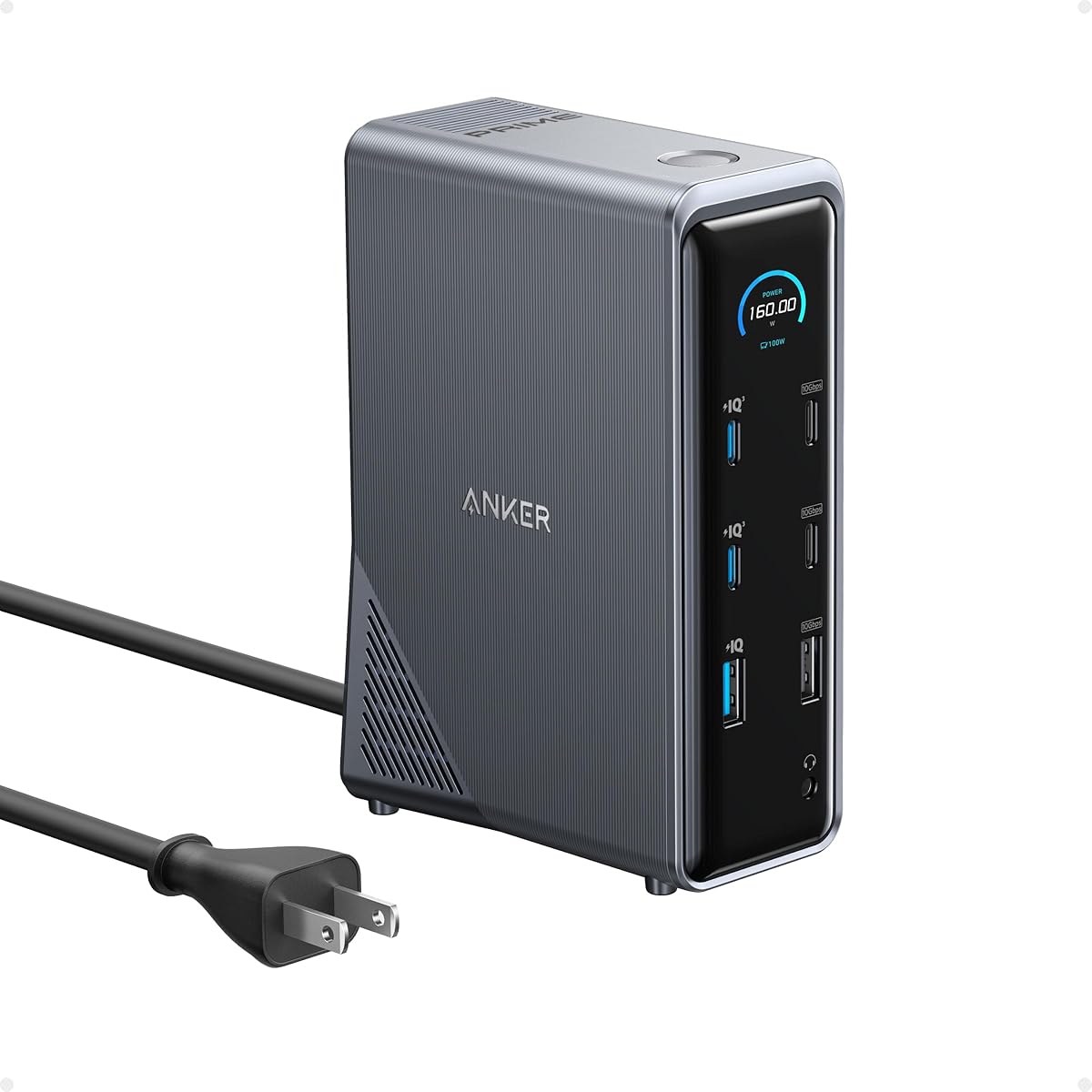
The Anker Prime 14-in-1 Docking Station has a 4.3 rating and differentiates itself through charging flexibility. It can deliver a total of 160W, including up to 100W through each of three USB-C ports and up to 12W through one USB-A port, allowing several devices to charge at once.
We may earn a commission when you buy through this link, at no additional cost to you.
Its 11-port data and connectivity layout supports a conventional two-monitor desk. The dual HDMI outputs can drive two displays at up to 2K and 60Hz with a DisplayPort 1.4 host, or 1080p and 60Hz with a DisplayPort 1.2 host. Data transfers can reach 10Gbps, which is useful for external storage and other high-bandwidth peripherals.
Compatibility spans USB-C, USB4, and Thunderbolt systems on Windows 10, Windows 11, and ChromeOS. Linux is not supported, and macOS displays carry the same restriction seen on other dual-screen docks: the two external monitor outputs are identical. The product also does not support a 5120 by 1440 monitor.
The Prime 14-in-1 is best for users who view charging as a primary dock function, particularly those with several USB-C devices to power alongside their laptop. It is a polished dual-monitor option, but buyers who require three independent screens should move toward a DisplayLink model.
The 160W aggregate output sets the Prime apart from docks focused only on host charging. It is well suited to a desk containing a notebook, phone, tablet, earbuds case, or accessories that can benefit from dedicated USB-C power.
Support for current Windows versions, ChromeOS, and modern USB-C standards makes the dock straightforward to recommend to a mixed personal-device household. The macOS mirroring limitation and excluded Linux support make operating system selection more important.
We may earn a commission when you buy through this link, at no additional cost to you.
The Anker Laptop Docking Station Dual Monitor earns a 4.5 rating and provides a focused eight-function alternative to larger workstations. It combines dual HDMI, Ethernet, two USB-A data ports, a USB-C charging input, and a microSD/SD reader in a streamlined package.
We may earn a commission when you buy through this link, at no additional cost to you.
Its display performance is useful for standard offices. One connected display can run at 4K and 60Hz, while two displays can each run at 4K and 30Hz. On macOS, the two external monitor outputs will show identical content, an important distinction for users who need separate extended desktops.
Power delivery supports pass-through charging up to 85W. The listing notes that a 100W PD wall charger and USB-C-to-C cable are required, so the dock itself should not be treated as including the complete high-power charging solution. It supports USB-C, USB4, and Thunderbolt hosts on Windows 10, Windows 11, and ChromeOS, but not Linux.
For a user who wants dual displays, wired networking, card access, and host charging without a large enterprise dock, this is a particularly efficient recommendation. It earns the budget badge because it focuses on the most common needs without introducing more complexity than the setup requires.
The eight-function layout covers displays, charging, Ethernet, basic USB peripherals, and removable media. That makes it suitable for compact offices and home desks where a full-size docking station would add unnecessary bulk.
The ability to run two 4K displays at 30Hz is a useful step above basic single-screen hubs. Exact output behavior remains subject to the host's graphics capabilities, so users with demanding display requirements should verify compatibility.
We may earn a commission when you buy through this link, at no additional cost to you.
The Anker Prime Docking Station DL7400 has a 4.0 rating and is the most technically advanced model in this roundup. It combines triple 4K display support, up to 140W of host charging, 2.5Gbps Ethernet, 10Gbps USB-C connections, card readers, active cooling, and a built-in status display.
We may earn a commission when you buy through this link, at no additional cost to you.
The 140W upstream port is designed to power demanding notebooks while the front USB-C ports can each deliver 100W. The included 3.3-foot USB-C 3.2 Gen 2 cable is explicitly recommended because other cables may cause issues. The front USB-C ports support data and charging but cannot drive USB-C or Thunderbolt monitors.
Triple-display operation depends on DisplayLink, requiring the latest driver on Windows 10 or 11. Protected streaming from services such as Netflix, Prime Video, and Disney+ may produce a black screen while audio continues, although disabling browser hardware acceleration can resolve browser-streaming cases. The product also uses an active fan and ActiveShield 3.0 cooling system.
This premium dock is ideal for Windows professionals who need three 4K screens, fast wired networking, substantial charging, and a high port count from one device. It is less appropriate for users who want effortless plug-and-play operation, need Linux, or regularly depend on DRM-protected streaming without considering the stated limitations.
The DisplayLink architecture extends beyond the common two-display ceiling, and the dock can power three 4K monitors. That is valuable for trading, editing, engineering, and general productivity workflows where each screen serves a distinct purpose.
The built-in display reports charging power, display performance, fan mode, and settings. Active cooling adds another layer of thermal management for sustained high-bandwidth use, while the 2.5Gbps Ethernet port supports faster local network workflows than standard Gigabit connections.
We may earn a commission when you buy through this link, at no additional cost to you.
The Dell Pro Smart Dock SD25 earns a 4.5 rating and represents a different kind of docking station. Rather than leading with display counts or a long port inventory, its distinguishing feature is remote management through the Dell Device Management Console over Wi-Fi.
We may earn a commission when you buy through this link, at no additional cost to you.
The dock can be configured, deployed, and updated without requiring the end user to be present. IT teams can schedule updates during off-hours, maintain fleetwide firmware compliance, and reduce interruptions. This makes the SD25 especially relevant to organizations managing many shared or remotely deployed peripherals.
Security features include enterprise-grade WPA-3 192-bit encryption for wireless communication and tamper-resistant, hardware-based encryption. Dell also states that the enclosure uses at least 65% postconsumer recycled materials and ships in 100% recycled or renewable packaging. An ambidextrous USB-C cable makes placement flexible around the workstation.
The SD25 is a compelling recommendation for enterprise fleet operators, especially those already invested in Dell's management ecosystem. For a home user, however, its benefits may be less visible than a strong port selection or explicit multi-monitor support, so the full product specification should be checked before choosing it.
Central configuration and firmware updates over Wi-Fi reduce the need for technicians to visit every desk. Scheduled maintenance further helps IT departments standardize deployments and minimize disruption during working hours.
WPA-3 192-bit wireless protection and hardware-based tamper resistance align with modern enterprise security requirements. These characteristics are especially relevant for shared workspaces, commercial deployments, and sensitive office environments.
We may earn a commission when you buy through this link, at no additional cost to you.
The right docking station depends on your host computer, operating system, display needs, charging demands, and physical workspace. Use the following factors to narrow the field before comparing final features.
Power delivery is not a single standardized amount across docks. The models here range from 85W passthrough to as much as 140W delivered to the host, while some also advertise higher aggregate output for charging several devices. A higher host rating can suit a larger notebook or workstation, but it does not guarantee that every laptop will accept the full amount. The host's USB-C power profile, firmware, and thermal limits all matter. Matching the dock to the manufacturer of the laptop is generally the safest route, while users of smaller ultraportables may not need a dock with the highest charging figure.
In short, match host power to the laptop first, then consider whether extra charging capacity for other devices would add value.
Begin with the number of external monitors, their resolutions, and their refresh rates. A dual-HDMI dock may suit an office with two 4K panels at 30Hz, while a DisplayLink model can extend a compatible Windows laptop to three 4K displays. macOS limitations are another important factor: several docks offer mirroring rather than separate extended desktops. Native DisplayPort Alt Mode may also differ from DisplayLink behavior, so the host operating system and graphics hardware deserve as much attention as the monitor specifications.
In short, confirm the complete host-and-monitor combination rather than relying on the dock's headline display count.
HDMI and DisplayPort are not interchangeable in every deployment. HDMI is common in office monitors and supports many mainstream configurations, while DisplayPort is widely used with high-refresh and professional displays. Some docks add a USB-C multifunction video port, while others provide a mix of legacy and modern outputs. Users should inspect the exact connector inventory and verify whether a USB-C monitor output is intended for video, data, or both. This avoids discovering after installation that an extra physical port cannot deliver the display mode expected.
In short, choose the connector mix that matches your existing monitors instead of merely counting video outputs.
Peripheral performance depends on the slowest component in the connection. A 10Gbps USB-C port is useful for fast external storage, but the attached drive, host, and cable must all support the relevant speed. Wired Ethernet is valuable for stable transfers, video calls, and large file workflows, with the Anker DL7400 offering 2.5Gbps while several alternatives provide Gigabit Ethernet. Dock owners should also notice whether USB-A ports are optimized for data, charging, or both, and whether a low-speed port is suggested for a keyboard or mouse receiver.
In short, prioritize the network and data speeds used by your real workflow rather than treating every port as interchangeable.
Native USB-C display support is usually straightforward, but adding screens beyond a laptop's native limit often requires DisplayLink software. Plugable notes driver installation for macOS, while the Anker DL7400 requires the latest DisplayLink driver for its triple-display feature. Linux support is absent from several otherwise versatile products. Managed offices should also consider how easily the required driver can be deployed and maintained across the fleet. Confirming compatibility before ordering is especially important for shared workstations and rapid employee onboarding.
In short, treat the operating system and driver as part of the product, not an optional final step.
A docking station that performs well on a fixed desk may be awkward to carry. The Anker Nano Dock addresses this directly with a detachable portable hub, while the Anker 8-in-1 Media Hub favors a smaller all-in-one design. Larger models can be justified when they replace several adapters, supply sustained charging, or manage numerous displays. Consider the footprint, host-cable length, power adapter, and nearby furniture before buying. A dock that crowds the front edge of a desk or cannot accommodate an upright monitor may be less convenient than a more compact alternative.
In short, balance port capacity with the space and portability requirements of your actual workspace.
Business buyers may need more than a capable port array. The Dell Pro WD25 emphasizes manageability, while the Dell Pro Smart Dock SD25 offers remote configuration and updates over Wi-Fi, scheduled maintenance, hardware-based tamper resistance, and WPA-3 192-bit encryption. These features are most relevant to IT administrators managing multiple docks. Sustainability details such as recycled materials, renewable packaging, and reduced standby consumption can also influence institutional purchasing. Individual users may not need fleet controls, but they should determine whether the additional dock features justify the selection.
In short, enterprise management should be a deciding factor for fleet deployments and a secondary consideration at home.
Start by checking the laptop's USB-C capabilities, the host operating system, and the monitor arrangement. Connect the dock's power adapter first, then attach the correct upstream USB-C cable to the computer. A blue indicator or illuminated port ring on some models confirms that the dock has detected the host, but the indicator does not itself prove that every display mode is supported.
Connect monitors one at a time and allow the operating system to detect each screen. Set the desired resolution and refresh rate in the display settings, then use the system's extended, mirrored, or arrangement controls. If a dock uses DisplayLink, install the current driver before expecting the additional screens to work, and use the recommended cable to achieve the stated data and display performance.
For daily care, keep the dock's vents unobstructed and avoid placing it beneath stacks of paper or other equipment. Use the included or specified power supply, inspect cables for bending or damage, and keep the host connection secure. When traveling, disconnect peripherals carefully, store card readers with their covers closed, and avoid leaving removable media inside the dock during transport.
No. The laptop must support USB-C Power Delivery, and its power profile must accept the dock's offered output. USB-C, USB4, and Thunderbolt support also does not automatically mean that every display mode is available. Check the laptop manufacturer's compatibility information, especially for high-power charging, triple displays, and macOS extended-desktop behavior.
macOS limitations cause several compatible docks to mirror their external displays instead of creating separate extended desktops. A dock may still support a different arrangement on Windows. Confirm the operating system and display-mode requirements before purchasing, particularly if separate application windows on each monitor are essential.
No. DisplayLink is required when the dock provides more screens than the host can drive through its native graphics output. Docks that rely on it may need driver installation, and protected streaming can sometimes display a black image while audio continues. Native multi-monitor configurations may be simpler but can be more limited by the laptop's display support.
Use the adapter supplied with the dock whenever possible. If a replacement is necessary, it should meet the dock's voltage, current, and connector requirements. Some listings, including the Anker 8-in-1 Media Hub, require compatible high-power charging equipment that may not be included, so check the package contents before purchase.
Charging behavior while powered off or in sleep mode depends on the laptop, dock, and power standards involved. Some systems draw power for charging and resume from sleep, while others behave differently. Consult the laptop manufacturer's documentation if uninterrupted charging through a closed lid is a critical part of your workflow.
Only when the network, router, switch, server, internet plan, and connected computer also support the higher rate. A 2.5Gbps Ethernet port can improve transfers on a properly equipped local network, but it cannot increase a slower internet connection. It can still help with large file transfers, network storage, and video collaboration on a suitable network.
They can be useful for transferring media without finding a separate reader. Several docks support both SD and microSD, and the Acer model documents simultaneous read and write. Card-reader speed still depends on the cards and host connection, while direct editing may be faster when files remain on fast external storage rather than being copied immediately.
Choose a permanent, higher-capacity dock when your desk regularly uses multiple displays, Ethernet, many peripherals, and sustained host charging. Choose a portable hub when mobility and a small footprint are more important than maximum display count. The Anker Nano Dock offers both through its detachable 6-in-1 hub and larger desktop base.
The Dell Pro WD25 is the strongest all-around choice, combining up to 100W host charging, broad display support, useful management considerations, and a polished cable design. The Anker 8-in-1 Media Hub delivers the most focused value option, while the Anker Prime DisplayLink Dock is the premium selection for Windows users who need three 4K screens, high charging capacity, and advanced network performance.
Prioritize compatibility before features. Confirm that the host accepts the dock's charging profile, that the operating system supports the intended display arrangement, and that the supplied cable is suitable for the advertised data speeds. After those fundamentals are secure, compare Ethernet speed, USB bandwidth, card access, audio, manageability, portability, and included accessories.
Finally, check current product listings and prices immediately before ordering. Docking station bundles, included adapters, cables, driver requirements, and supported display modes can change. Comparing the latest documentation with your specific laptop and monitors will help ensure that the selected model works as a complete and reliable desk setup.
