
64GB Bootable USB Drive 3.2
4.3Editor score
Windows 11 installation support
UEFI and legacy compatibility
Network and recovery utilities
No TPM requirement stated
Our Bootable Flash Drive guide compares ten options across Windows installation, Linux booting, recovery, capacity, portability, security, and performance.
A bootable flash drive is more than ordinary removable storage: it can start a computer, launch a recovery environment, install an operating system, or provide a portable Linux desktop. The right choice depends on firmware support, bundled tools, capacity, intended operating system, and whether portability or everyday storage matters most.
We compared all ten products using their supplied specifications, stated compatibility, included utilities, capacity, design, and customer ratings. The list covers Windows installation and recovery drives, multi-distribution Linux launchers, and high-performance flash storage suitable for creating boot media with additional preparation.
Each review explains the strongest use case, important limitations, and setup expectations. Ratings reflect the supplied marketplace feedback rather than personal testing, while product availability and prices can change, so readers should confirm the latest listing details before buying.
4.3Editor score

4.1Editor score

4.7Editor score
This side-by-side comparison distinguishes ready-to-boot Windows and Linux tools from conventional high-speed flash drives that can serve as the source for boot media. It also highlights capacity, firmware compatibility, bundled utilities, portability, and security features.
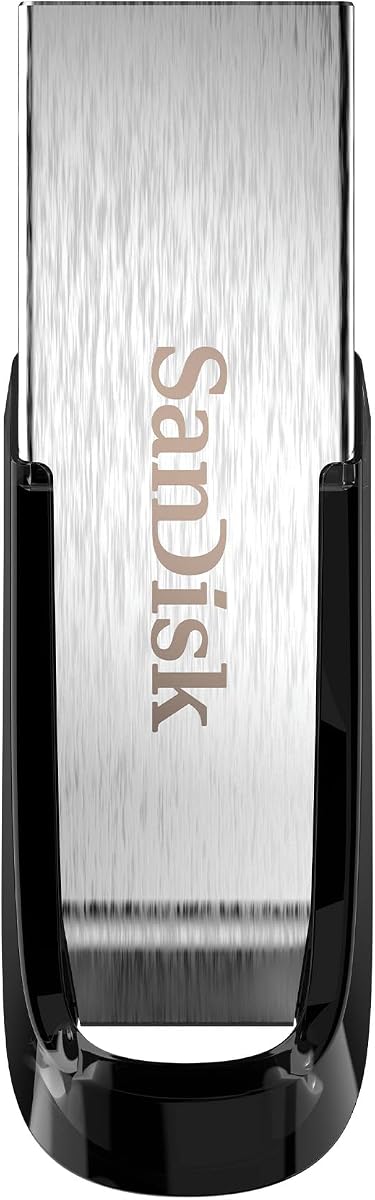



This 64GB bootable USB drive is a practical all-in-one option for installing supported 64-bit Windows versions or rebuilding a system that will no longer boot normally. It carries a 4.3 customer rating and stands out for a broad collection of recovery tools, network drivers, partitioning functions, and beginner instructions in one device.
We may earn a commission when you buy through this link, at no additional cost to you.
The drive supports Windows 11, Windows 10, Windows 8.1, and Windows 7, with a stated 3.2 USB interface and compatibility with both UEFI and legacy systems. Its no-TPM requirement may help users install Windows 11 on hardware that does not meet the usual processor and firmware expectations, although no operating-system key is included.
There are important boundaries. It is designed to reinstall Windows, not perform the built-in Automatic Repair option, and an existing Windows installation cannot be preserved. Secure Boot may need to be disabled before booting, and the manufacturer notes that some installation failures result from a hard-drive problem rather than the installer itself.
This is a strong choice for a home user who wants a straightforward Windows recovery tool without setting up an ISO independently. It is less suitable for anyone who needs automatic repair, a product key, or a promise that every failed computer can be restored. A backup of important files should be made before reinstalling.
The included package covers network access, hard-drive partitioning, data recovery, and other maintenance utilities. That combination makes the drive useful when a machine has connectivity-driver problems, a damaged installation, or a boot configuration that needs to be replaced.
The product information points beginners to a video tutorial explaining how to boot from USB and access the boot menu. Prospective buyers should still confirm their computer's boot controls and be comfortable changing the temporary boot-device order.
We may earn a commission when you buy through this link, at no additional cost to you.
The SANDISK Ultra Flair is not sold as a ready-to-boot recovery system, but it is a strong foundation for creating one. Its 128GB capacity, USB 3.0 interface, and stated read speed of up to 150MB/s make it well suited to copying installation files and handling the repeated transfers involved in preparing boot media.
We may earn a commission when you buy through this link, at no additional cost to you.
The supplied information also highlights a durable metal casing and straightforward password protection through 128-bit AES encryption. Supported on the listed Windows versions and recent Mac OS X releases, the security function requires a software download on Mac rather than being handled entirely by the hardware.
The main limitation is preparation. Buyers receive a conventional flash drive rather than a collection of preloaded operating systems or recovery environments. They must obtain an official or otherwise trusted ISO, write it using suitable software, and adjust firmware settings before the device can start a computer.
For technically comfortable users who want to build a reusable Windows installer, this drive is a compelling option. Its transfer speed and capacity also make it useful for ordinary file storage afterward. Those seeking a turnkey product with Windows utilities already included should choose one of the preconfigured installer drives instead.
A fast host interface can shorten the time needed to copy large installation images and move working files. Actual performance varies with the computer, port, file attributes, and other conditions, so users should use a USB 3.0 port for the best available speed.
The listed password-protection support adds value when the drive is also used to store private documents. Because Mac users must download the relevant software, cross-platform security setup requires an extra step.
We may earn a commission when you buy through this link, at no additional cost to you.
This 16-in-1 device is the most versatile preloaded option in the list because it combines a Windows 11 installer with a large selection of Linux distributions. Its 4.1 rating reflects a practical tool for users who want to test operating systems, perform maintenance work, or keep several installation environments on one drive.
We may earn a commission when you buy through this link, at no additional cost to you.
The supplied list includes Linux Mint, Kali, Ubuntu, Zorin Pro, Tails, Debian, Garuda, Fedora Workstation, Manjaro, Pop!_OS, Solus, Archcraft, Neon, FosSaPup, and SparkyLinux. The stated 64GB capacity provides enough room to hold multiple systems, and compatibility is advertised for both UEFI and legacy computers.
Secure Boot may need to be disabled for compatible booting, and a menu containing numerous systems can feel complex to someone encountering Linux for the first time. The product information describes the included ISO images as tested, but buyers should recognize that distribution versions can evolve over time.
This is the strongest choice for experimenting with Linux without committing immediately to a full installation. It also serves Windows users who want one drive to cover both operating-system families. Users focused solely on repairing a broken Windows installation may prefer a less crowded Windows-specific tool.
The wide distribution selection lets users compare interfaces, package ecosystems, and workflow tools before making a permanent choice. Booting in a trial mode can also reduce the risk of changing the internal drive unintentionally.
Adding Windows 11 support broadens the device's role beyond a Linux showcase. It is useful for system maintenance, rescuing an existing installation, or testing a new environment from a single portable tool.
We may earn a commission when you buy through this link, at no additional cost to you.
This 32GB drive focuses on reinstalling Windows 10 or Windows 11 and includes the recovery utilities expected from a compact system-maintenance tool. Its 4.2 rating and support for 64-bit Pro and Home editions make it relevant to users seeking a straightforward way to rebuild compatible 64-bit systems.
We may earn a commission when you buy through this link, at no additional cost to you.
The package includes WiFi and LAN network drives, hard-drive partitioning, data recovery, and backup functions. It supports UEFI and legacy boot modes, while its stated no-TPM configuration can broaden Windows 11 installation options on machines that lack the standard hardware combination.
Its 32GB capacity is adequate for a Windows installation environment but leaves limited room for large personal files, extensive ISOs, or multiple operating systems. As with the other Windows reinstallation tools, it cannot preserve an existing Windows installation and does not include an operating-system key.
The product is best for users who want a small, dedicated Windows recovery tool rather than a general-purpose drive. Its bundled network and partition tools are valuable additions, but buyers with significant data-storage needs may prefer the 64GB options. A complete data backup remains essential before reinstalling.
Some systems install successfully but lack the drivers needed to reach the internet. The listed WiFi and LAN network drives are intended to address that common post-installation problem.
Partitioning and backup functions make the device more useful than a bare Windows installer. They also underscore the need to work carefully, because selecting the wrong disk or partition during a recovery task can lead to unwanted changes.
We may earn a commission when you buy through this link, at no additional cost to you.
The 8GB Windows Setup USB is a narrowly focused option for installing and repairing Windows 11 on compatible computers. Its 4.0 rating reflects a simple product with clearly stated limitations, including a compact capacity, no included product key, and no ability to recover files from a failed drive.
We may earn a commission when you buy through this link, at no additional cost to you.
The drive is advertised for both UEFI and legacy systems and does not require TPM for the supported installation process. It is a sensible choice for a technician or household that only needs a small, always-available Windows installation tool rather than storage for installers, media libraries, and backups.
The product information is unusually direct about what the device cannot do. It does not fix dead motherboards, faulty RAM, failing hard drives, or a computer that will not power on or enter its firmware setup. It is also unsuitable for Chromebooks, ARM or Snapdragon systems, and Apple-silicon Macs, and it is not intended for BitLocker recovery or saving files from a failed drive.
Choose this drive only after confirming that the target computer can start, open BIOS or UEFI, access a boot menu, and boot from USB. Within that narrow use case, it provides a lightweight installation and recovery tool. It is not a general-purpose file store or an all-purpose computer repair solution.
Software cannot restore a computer that cannot reach its firmware or power on. Checking this limitation before ordering avoids disappointment and makes the product suitable for its intended reinstallation task rather than every conceivable repair scenario.
The small 8GB capacity makes the drive easy to store in a desk drawer, repair kit, or laptop bag. It is best kept dedicated to installation media so that important files are not accidentally deleted during a reinstallation.
We may earn a commission when you buy through this link, at no additional cost to you.
The 32GB 9-in-1 Linux drive is tailored to Windows users who want a guided introduction to Linux. It includes Ubuntu, Linux Mint, MX Linux, Elementary OS, Linux Lite, a Fedora-related replacement, a 32-bit option, Pop!_OS, and Zorin OS, with a printed guide explaining how to boot and try or install the systems.
We may earn a commission when you buy through this link, at no additional cost to you.
One of its most useful features is the ability to test each distribution before installation, allowing users to explore the interface and bundled applications without immediately touching the internal drive. The included software commonly covers office productivity, web browsing, messaging, image editing, multimedia, and email, which helps new users perform meaningful tasks.
Compatibility is broad across laptop and desktop brands, but the product excludes Macs, Chromebooks, and ARM-based devices. Legacy BIOS and UEFI booting are supported, while Secure Boot may need to be disabled in UEFI mode. The included note recommends pressing Enter if a black screen appears after selecting Linux.
This is a better fit for cautious beginners than for advanced administrators who need a particular current release or custom kernel. A printed guide and beginner-oriented distribution mix reduce the learning curve, but buyers should still be willing to learn basic boot controls and understand that preloaded versions may change over time.
Live-boot testing gives users a way to check network support, peripherals, display behavior, and application availability before replacing an existing system. This lowers the commitment required when evaluating a new operating system.
The prebundled productivity, communication, editing, and multimedia applications make the included distributions practical rather than minimal. They provide useful workloads for testing Linux while a user decides whether a permanent migration makes sense.
We may earn a commission when you buy through this link, at no additional cost to you.
The Lexar A30E three-pack offers three 64GB USB Type-A flash drives with up to 100MB/s transfer speeds. Rather than arriving preloaded, it is best suited to users who want to prepare several boot drives independently—for example, one for Windows installation, one for Linux, and another for recovery media or a separate computer.
We may earn a commission when you buy through this link, at no additional cost to you.
Each drive has a lightweight, retractable design, a lanyard loop, and broad compatibility with laptops, Macs, tablets, and other Type-A devices. No software installation is needed for ordinary storage, and the 4.6 rating reflects a well-regarded general-purpose flash-drive format.
For sensitive files, Lexar DataShield can create a password-protected safe with automatic encryption, and files removed from that safe are described as securely erased. Boot media itself still requires a separate ISO-writing workflow, so buyers must understand that the three-pack is a foundation rather than a set of ready-to-boot recovery tools.
This package is particularly attractive to technicians, students, or families managing multiple systems. It reduces the need to repeatedly erase one device and makes it easy to keep operating-system or recovery environments separate. Users who only need one preconfigured Windows installer may find a dedicated 32GB or 64GB recovery drive more convenient.
Keeping different installation images on different drives reduces the chance of accidentally overwriting a useful recovery tool. It also makes the set practical for maintaining machines with different operating-system or architecture requirements.
DataShield adds a protected safe within the ordinary storage workflow. This is valuable when a boot drive also contains installers, credentials, or diagnostic files that should not be freely accessible.
We may earn a commission when you buy through this link, at no additional cost to you.
This 64GB drive combines Windows installation with a substantial maintenance toolkit, making it one of the most feature-rich options for supported systems. It offers Windows 11, Windows 10, Windows 8.1, and Windows 7 installation, a stated bypass of TPM requirements, and compatibility with UEFI and legacy computers.
We may earn a commission when you buy through this link, at no additional cost to you.
Beyond installation, the package includes network drives, Windows password reset tools, hard-drive partitioning, data backup, data recovery, and hardware testing. A video tutorial and technical support are also listed, which may help first-time users navigate the boot process and common maintenance tasks.
Its purpose is still reinstalling Windows rather than preserving the current installation. The stated information specifically says that the Automatic Repair option is not supported. Secure Boot may need to be disabled, and the drive's advertised Windows bypass does not change the separate hardware requirements of every system.
This product suits a technically curious user who wants more than a bare installer and values a self-contained recovery toolkit. It is less appropriate for BitLocker-focused key recovery, indiscriminate data salvage, or users who insist on retaining their existing Windows installation. The included tutorials and support make it more approachable than a blank drive.
The WinPE environment provides a preboot workspace, while the included reset tools can help users regain access when they can no longer sign in. These functions extend the drive beyond simply copying operating-system files.
Hardware testing can help narrow down whether a suspected problem lies outside the operating system. The drive should still be viewed as a Windows maintenance tool rather than a substitute for physical diagnostics or professional repair.
We may earn a commission when you buy through this link, at no additional cost to you.
The Lexar D40E is a conventional high-capacity flash drive with a useful dual-connector design, making it particularly relevant to creating boot media for modern USB-C computers. It combines a USB Type-A connector and USB Type-C plug in a rotating metal enclosure, and it carries a 4.4 customer rating.
We may earn a commission when you buy through this link, at no additional cost to you.
With 256GB of capacity, the drive can hold several installation images alongside installers, diagnostic files, and ordinary documents. Stated transfer speeds reach 100MB/s, although actual results depend on the host device, interface, and operating conditions. Plug-and-play storage support extends to Type-C phones, tablets, laptops, Macs, and traditional Type-A devices.
The security software supports 256-bit AES encryption for protecting files. The enclosure is rated to operate from 32°F to 122°F, and the product includes a three-year limited warranty. As a boot-media foundation, however, it requires the user to download the desired image, write it correctly, and verify that the target computer can boot from the chosen connector and firmware mode.
Choose the D40E when connector flexibility, capacity, and future-proofing matter more than having an operating system preloaded. Its dual design reduces the need to carry another adapter, while the rotating enclosure removes the risk of losing a removable cap. It is an excellent storage drive for a prepared bootable system, but not a turnkey installer.
The combined Type-A and Type-C layout makes the same drive useful across older and newer systems. That is especially helpful when creating separate installation media for different computer generations.
A 256GB drive can retain multiple images, utility folders, and backups without frequent erasing. It is well suited to users who prepare and maintain several portable operating-system environments.
We may earn a commission when you buy through this link, at no additional cost to you.
The SAMSUNG BAR Plus is the highest-rated product in this guide, with a 4.7 customer rating, and it is the strongest premium choice for creating high-quality boot media. Its 128GB capacity balances useful storage with a portable form, while the stated read speed of up to 300MB/s provides ample speed for writing and moving operating-system images.
We may earn a commission when you buy through this link, at no additional cost to you.
The metal body is described as waterproof, shock-proof, temperature-proof, magnet-proof, and X-ray-proof. An integrated keyring helps reduce accidental loss, and a five-year limited warranty supports long-term ownership. Samsung also states that its firmware and components, including DRAM and NAND, are produced in-house.
The important distinction is that this is not a ready-to-boot Windows or Linux device. Users must prepare it with an ISO and compatible writing software, and they should check their computer's boot controls. Its superior speed is especially useful for repeated transfers, while the robust enclosure is reassuring for a drive that will travel between computers.
For a buyer who wants one premium flash drive for boot-media preparation, file storage, and everyday use, the BAR Plus is the most balanced high-performance choice. It is less convenient than the preloaded Windows and Linux options but offers stronger speed, construction, and rating than those alternatives.
The stated transfer rate makes the drive well suited to copying large ISO files, moving media libraries, and keeping the device useful after boot preparation. Performance will depend on the host port and file sizes, but USB 3.1 equipment offers the best conditions.
The metal body and listed resistance qualities suit a device intended to move between home, work, and repair environments. The integrated keyring also makes it easier to keep with a laptop bag or other essential equipment.
We may earn a commission when you buy through this link, at no additional cost to you.
The right bootable flash drive depends on whether you want a ready-to-use recovery tool or a fast blank drive for creating your own media. Capacity, firmware support, operating-system coverage, and bundled utilities should be matched to the computers you actually need to support.
A ready-made drive is the simplest choice when a computer will not start and creating boot media from another system would be difficult. Preloaded products in this guide include Windows installers, Linux distributions, recovery utilities, or some combination of those environments. A blank high-speed drive offers more control but requires an official installation image, compatible writing software, and a working computer.
Choose preloaded media for emergency readiness, and choose blank media for custom operating systems, multiple architectures, or frequent image replacement.
Windows-only tools focus on reinstalling supported 64-bit editions, sometimes including network drivers and password utilities. Multi-distribution Linux drives are better for testing a desktop before migration or maintaining systems with different needs. Some products combine Windows 11 with numerous Linux environments, providing flexibility but creating a more complex boot menu.
Match the operating systems and editions to your target hardware rather than choosing based only on the number of included tools.
UEFI support is essential for most modern computers, while legacy BIOS support can matter for older machines. Every preconfigured installer in this list states UEFI and legacy compatibility, but several also state that Secure Boot may need to be disabled. Secure Boot controls firmware-level validation and cannot be ignored if a particular image refuses to start.
Confirm the firmware mode of the target computer and be prepared to enter its setup or one-time boot menu before selecting the USB device.
Several Windows 11 installers state that TPM is not required, which can make them useful on systems that do not meet the usual Windows 11 hardware profile. That does not guarantee every Windows 11 feature or update will work on older hardware. None of the listed Windows installation products includes an operating-system key, so a valid license is still needed for a properly activated installation.
Treat the no-TPM claim as an installation aid rather than a blanket promise of full compatibility, and confirm licensing separately.
An 8GB drive is sufficient for a focused Windows installation environment, while 32GB and 64GB provide more room for utilities and multiple media. The 128GB and 256GB conventional drives are better suited to storing several installation images, diagnostics, and ordinary files. Extra space does not make every preloaded drive better, because a small dedicated tool can be easier to maintain.
Choose the smallest capacity that comfortably supports your planned images and recovery files, or the largest capacity needed for a reusable media library.
Transfer speed matters most when writing large ISO files, copying media libraries, or transferring a boot environment after a crash. The listed conventional drives range from up to 100MB/s to 300MB/s read speeds, while the SanDisk Ultra Flair states up to 150MB/s. USB 3.0 or newer host ports are required for the best results, and actual performance varies by device and file attributes.
For a one-time installation, speed may matter less than reliability. For repeatedly prepared media, use a fast host interface and a drive with room for the full workflow.
Password protection can be useful for a drive containing installation files, customer documents, or diagnostic data. The SanDisk and Lexar products list AES encryption, with the Lexar D40E specifying 256-bit AES. Other useful tools include WiFi and LAN drivers, partitioning, backup, data recovery, password reset, and hardware testing. These utilities vary considerably and should not be confused with professional file-recovery guarantees.
Prioritize security for sensitive data and utilities that match your likely workflow, but preserve an independent backup before attempting repairs.
A boot drive is often kept in a drawer, tool bag, or laptop compartment and may travel between systems. Metal enclosures and retracting or rotating connectors reduce the chance of damage or lost caps. The SAMSUNG BAR Plus offers extensive physical-resistance claims and an integrated keyring, while the Lexar A30E weighs only 7.41 grams and uses a push-button retractor.
For frequent travel, favor a compact enclosure, visible connector mechanism, and enough capacity for the intended operating-system collection.
Before using a preloaded drive, back up important files, connect the device to a working computer, and inspect its contents when possible. For a blank drive, obtain the operating-system image from a trusted source, select a reputable image-writing tool, choose the correct USB device, and verify the write process before attempting to boot from it. Never interrupt a write, because an incomplete image may not start correctly.
On the target computer, power it on and use the manufacturer's boot-menu key to select the USB device. If it does not appear, enter BIOS or UEFI setup, confirm that USB booting is enabled, and check whether Secure Boot must be disabled. The supplied product guidance repeatedly emphasizes that Secure Boot may need adjustment and that UEFI and legacy support do not eliminate model-specific configuration differences.
Keep recovery media dedicated and write-protected from accidental formatting. Store it in a clean, dry place, use the protective cap or retractable mechanism when applicable, and avoid using a boot drive for unrelated high-volume file storage. Periodically update a blank-media setup with current official images, and never rely on the drive as the only copy of irreplaceable data.
A bootable flash drive contains files that the computer can read during startup, allowing it to launch an installer, recovery environment, or portable operating system. An ordinary flash drive is designed mainly for file storage and usually cannot boot a computer until the user writes a bootable image to it. Some products in this guide arrive preloaded, while others require that preparation step.
Several products in this guide explicitly state that their Windows installers do not require TPM. That can help with installation on incompatible or older hardware, although it does not guarantee support for every Windows 11 feature or future update. Secure Boot may also need to be disabled, and the operating-system product key is not included with these drives.
It depends on the installation media and the computer's firmware settings. The preloaded products here state that Secure Boot may need to be disabled, particularly for UEFI booting. Changing this setting is a firmware-level action, so users should know how to restore it later and should follow the drive's included instructions.
Some listed drives include data-recovery utilities, but that does not mean every damaged storage device can be rescued. The 8GB Windows Setup USB specifically states that it is not intended for saving files from a failed drive. Recovery success depends on the type of failure, and a separate backup remains the safest response to storage problems.
An 8GB drive can work for a focused Windows 11 setup, while 32GB and 64GB options leave more room for utilities, instructions, and additional media. A 128GB or 256GB drive is most useful when you want to maintain several operating-system images and ordinary files. Whichever size you choose, keep important personal data backed up elsewhere.
Many Linux boot drives can launch into a live environment that runs from the USB device without modifying the internal drive. The 9-in-1 and 16-in-1 products explicitly support trying distributions before installation. Live testing helps users check their hardware and applications, though a permanent installation provides a cleaner and more convenient long-term setup.
No. Several products exclude Chromebooks, ARM-based devices, and Apple-silicon Macs, and some Windows tools specify that the computer must power on and reach BIOS or UEFI. Firmware differences, connector types, and device restrictions mean users should check the complete compatibility notes before ordering.
A preloaded drive is more convenient for emergencies and for users who may not have another working computer available to create boot media. Creating your own provides control over the operating-system image and makes it easy to update or create multiple tools. Experienced users can use one of the faster blank drives in this guide as a high-quality, reusable media source.
The 64GB Bootable USB Drive 3.2 is a practical budget choice for Windows installation and recovery, while the 16-in-1 drive offers the most varied portable environment by combining Windows 11 with numerous Linux distributions. For Linux beginners, the 9-in-1 option provides clear guidance and live-testing options, and the SAMSUNG BAR Plus stands out as the premium high-speed storage choice.
Prioritize the task you need to complete. Choose a preloaded drive for immediate recovery, a multi-distribution product for trying Linux, or a fast conventional drive when you want to prepare and maintain your own media. Before buying, verify UEFI or legacy compatibility, Secure Boot expectations, device exclusions, capacity, and whether a Windows product key is already available.
Marketplace ratings and prices can change over time, so check the current listing details before purchasing. Above all, treat every bootable flash drive as a tool rather than a backup: keep critical files on separate storage and test the boot process whenever possible.
