
Honeycomb Aeronautical Alpha Flight Controls Yoke & Switch Panel
4.4Editor score
Full 180-degree yoke rotation
Dedicated avionics switch panel
Heavy-duty clamps and suction mount
Our Mac game flight controllers guide compares ten leading yokes, HOTAS systems, and flight sticks for precision, comfort, compatibility, and realistic control.
Mac game flight controllers can make a flight simulator feel far more convincing, but the best setup depends on whether you prioritize realistic yoke handling, compact HOTAS convenience, extensive programmability, or a complete control bundle. The right controller should also suit your desk, preferred games, and level of experience.
We compared all ten products using the supplied specifications, focusing on control layouts, sensor and axis options, mounting requirements, button programmability, platform information, and practical cockpit features. The list covers traditional flight sticks, HOTAS controllers, full yokes, rudder pedal bundles, and systems that include separate switch panels.
Each pick reveals what it does best, from the Thrustmaster T-Flight Hotas X entry-level package to the Honeycomb Alpha and Logitech rudder pedal bundle. Ratings provide another useful reference, although they do not replace checking current Mac compatibility, software support, desk space, and prices, which can change at any time.
4.4Editor score

4.6Editor score

4.5Editor score
The comparison below covers every controller in the guide, highlighting the control format, major features, and best reasons to consider each model. Because several products list Windows compatibility rather than explicit Mac support, confirm your simulator and operating system before buying.



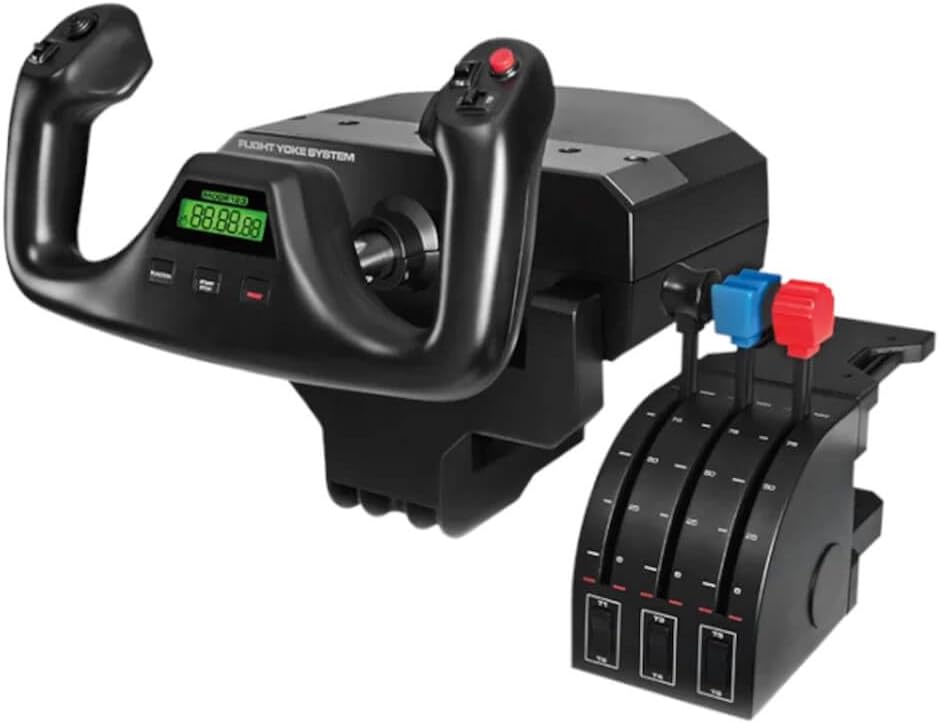

The Logitech G Pro Flight Yoke System is a strong all-around choice for Mac users seeking realistic airliner-style handling. It has a 4.3 rating and combines a full-size yoke, a separate four-axis throttle quadrant, and an extensive set of programmable inputs. The yoke includes a POV hat, 14 buttons, and a three-position mode switch for at least 54 programmable controls.
We may earn a commission when you buy through this link, at no additional cost to you.
The stainless steel shaft supports smooth, accurate pitch and roll inputs, while the flight yoke and quadrant use included desk clamps for stability. The quadrant provides throttle, propeller, and mixture-related control positions, making the package more suitable for conventional aircraft than a simple gamepad-style controller. The included USB and PS/2 connections also support different installation arrangements.
The main limitation is that pedals are not included, and the supplied compatibility information emphasizes Windows rather than explicitly confirming macOS support. Mac simulation software can recognize many USB flight controllers, but support varies by title and macOS release, so checking the game developer’s current requirements is essential. The product may also take up considerably more desk space than a compact HOTAS unit.
This Logitech package is best for pilots who want yoke-centered realism and a broad control surface without moving directly to a premium switch-panel system. It is a particularly sensible first serious flight-simulator setup or an upgrade for a player moving beyond a basic stick. Confirm Mac and game compatibility, and plan to add compatible rudder pedals later for a complete setup.
The full-size yoke and steel shaft create a more natural connection with simulated airliners and other yoke-controlled aircraft. A dedicated throttle quadrant completes the basic cockpit layout without requiring keyboard shortcuts for every adjustment.
A POV hat, 14 buttons, and a three-position mode switch place many aircraft functions under your fingers. The three operating modes are especially useful when one simulator includes several aircraft with different systems.
We may earn a commission when you buy through this link, at no additional cost to you.
The Thrustmaster T-Flight Hotas X combines a joystick and full-size throttle in a space-conscious package, making it a practical entry point for Mac flight simulation. Its 4.5 rating is the highest among the compact, non-yoke options here. The broad hand rest and ergonomically shaped throttle are designed to keep the hands in a natural position during extended sessions.
We may earn a commission when you buy through this link, at no additional cost to you.
All 12 action buttons and five axes are programmable, while the throttle can be detached when you want a different mounting arrangement. A resistance dial adjusts stick tension, and the handle supports alternate control methods for rudder input. The controller also includes a mapping button, a preset button, built-in memory, and preconfigured settings for quick setup.
Its primary limitation is platform uncertainty. The product title explicitly identifies it as a PC controller, and the supplied information does not confirm native or modern macOS support. That makes it risky for a Mac-only purchase unless the relevant game and driver requirements are clear. It also has fewer inputs and less visual feedback than displays-equipped flight sticks or full cockpit systems.
Choose the T-Flight Hotas X if you want a traditional flight-sim controller without committing to a large yoke. It is well suited to learning throttle-and-stick techniques, playing in a compact space, or using a simulator that supports generic USB input devices. For Mac owners, verify the exact macOS version and game compatibility before purchasing.
The joystick and throttle share one footprint, reducing the desk space required for separate units. You can also detach the throttle when a different configuration suits your game or available mounting space.
Preconfigured controls, instant profile switching, and onboard memory reduce the initial setup burden. The adjustable resistance dial also lets you tune the stick feel instead of accepting one fixed tension.
We may earn a commission when you buy through this link, at no additional cost to you.
The Logitech G X56 H.O.T.A.S. is built for simmers who want many aircraft functions within reach of a single controller. Its 4.0 rating reflects a capable but complex system. The yoke-style grip contains an analog stick, directional controls, and a separate mini analog stick intended for functions such as independently controlled weapons systems.
We may earn a commission when you buy through this link, at no additional cost to you.
Its defining strength is programmability, with more than 189 assignable controls supported by 16-bit hall-effect sensors on the aileron and elevator axes. An advanced four-spring system lets you choose among different stick forces, while twin throttles include a friction adjuster and throttle lock. RGB backlighting can be coordinated with other desktop peripherals through software.
The same density that makes the X56 useful for combat and space simulations can also make it intimidating. Buttons, axes, throttles, and switches demand time to learn, and the listed requirements are for Windows systems with two USB 2.0 ports. As with many specialized flight controls, Mac support should not be assumed without checking the game’s driver and operating-system guidance.
This controller is well suited to dedicated flight and space simulation enthusiasts who frequently switch aircraft roles and want fine control over force feedback. It is less attractive for casual players or anyone who values a clean, minimal layout. Verify Mac support first, then consider whether the large control count outweighs the greater learning curve.
Four selectable spring options let you change the feel of the main control according to your aircraft, game, or personal preference. This tuning can make slow flight more manageable while preserving firmer feedback for demanding maneuvers.
The mini analog stick and extensive button set allow more independent functions to be controlled without returning to a keyboard. That focus also suits virtual-reality play, where quick visual access to labeled controls is valuable.
We may earn a commission when you buy through this link, at no additional cost to you.
The Turtle Beach VelocityOne Flightstick is a modern universal-style stick for sim pilots who want meaningful on-controller information without moving to a full HOTAS unit. Its 4.2 rating is supported by a feature set that includes 27 programmable buttons, eight axes, a POV hat, a rapid-fire trigger, and an integrated OLED flight-management display.
We may earn a commission when you buy through this link, at no additional cost to you.
Non-contact technology on the main axes reduces unwanted physical contact and wear, while customizable throttle and flap levers provide dedicated control of commonly used aircraft functions. The configuration wheel offers an intuitive way to adjust settings, and the touchpad navigation sensor supplies cursor control for menus and non-flight interface tasks.
The product is listed for Xbox Series X|S, Xbox One, and PC rather than macOS. That distinction matters because a controller that works with console and Windows games may not appear, map, or function correctly in a Mac flight simulator. Its ambidextrous fighter-jet and airliner design is broad, but individual simulator support remains game-dependent.
The VelocityOne Flightstick makes the most sense for a gamer already invested in Xbox or PC titles and willing to use a separate Mac adapter or compatibility layer if the software supports one. It offers a clearer information display and more dedicated inputs than a basic joystick. Confirm that the specific Mac game you intend to fly supports the device before buying.
The integrated OLED display can show flight data and configuration details without requiring a separate monitor overlay. That is useful for learning aircraft systems and checking settings during a session.
Separate throttle and flap levers make frequently used functions easier to locate by touch. Their customizable nature also provides more flexibility than controls that are fixed in a single position or function.
We may earn a commission when you buy through this link, at no additional cost to you.
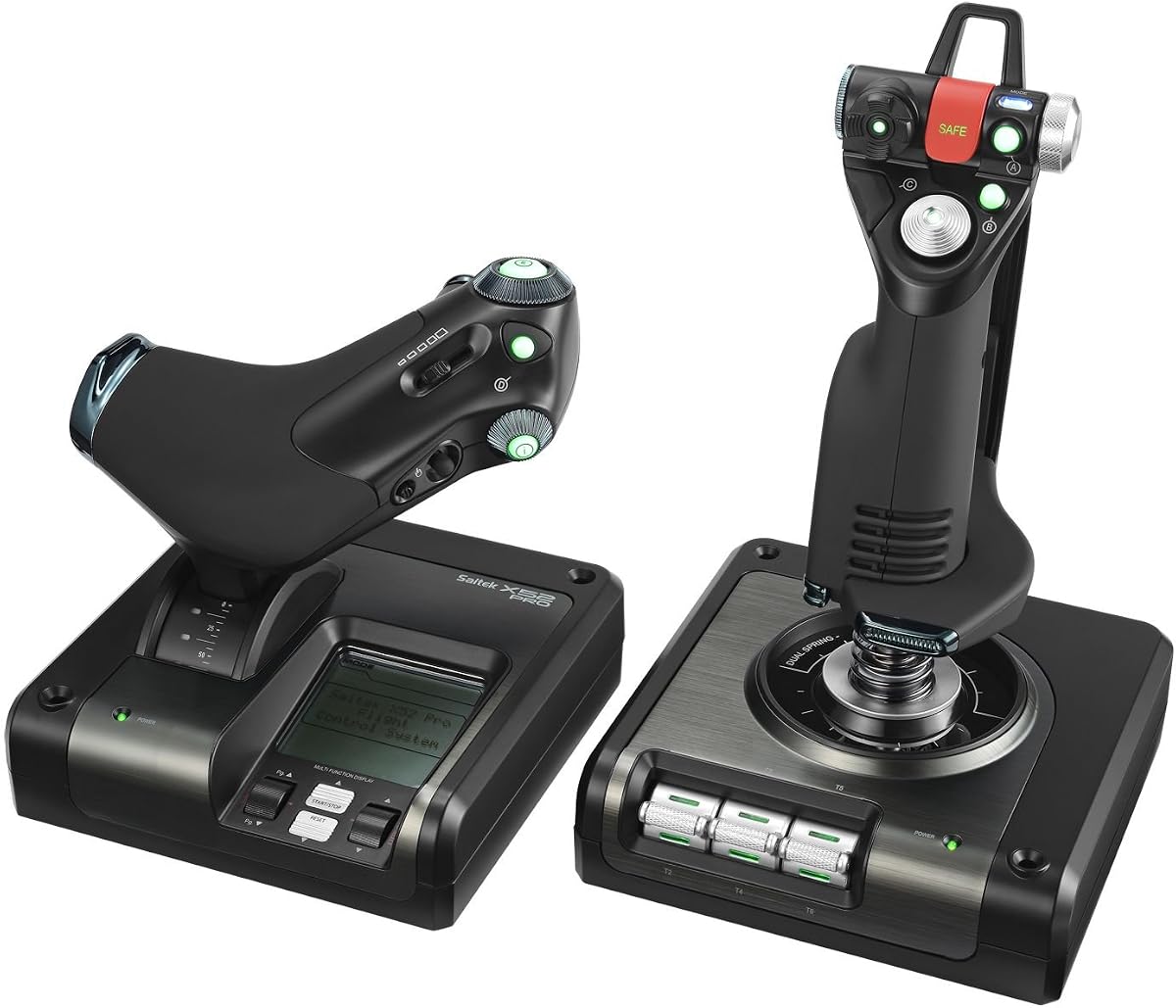
The Logitech G Saitek X52 Pro remains a recognizable conventional flight-control system for players who prefer a joystick and separate throttle. Its 3.9 rating is the lowest among the selections that do not carry an explicitly problematic low rating. The system combines a spring-loaded stick, illuminated controls, and a progressive throttle with adjustable resistance and detents.
We may earn a commission when you buy through this link, at no additional cost to you.
The multifunction LCD provides in-game information while illuminated buttons make the control panel easier to identify. Precision centering and non-contact technology on the X and Y axes are intended to support smooth movement, and the handle has five position adjustments to accommodate different hand sizes. Smart Technology software allows game-specific programming.
Its age is visible in the compatibility details. The listed requirements cover Windows 7, 8.1, and 10, with two USB 2.0 ports and an internet connection for optional software. It does not establish support for current macOS releases, so a Mac buyer should expect to investigate unofficial or community solutions and should not assume the software will install.
Choose the X52 Pro if you specifically want its recognizable layout, illuminated display, and progressive throttle and can verify that your chosen Mac simulator will recognize it. It is a reasonable option for Windows users or as a reference design, but it is not the safest recommendation for a strictly modern Mac-only setup. The five-position grip is nevertheless a notable comfort feature.
Resistance increases as the throttle moves, while detents mark idle and afterburner positions. This gives more tactile reference than a simple lever without requiring separate digital controls.
Five handle positions allow the grip to sit at different heights along the stick. A soft-touch, contoured surface helps maintain comfort, and the centered stick mechanism supports predictable return to neutral.
We may earn a commission when you buy through this link, at no additional cost to you.
The Honeycomb Alpha Flight Controls Yoke & Switch Panel is the most traditionally realistic cockpit package in this guide. It carries a 4.4 rating and combines a full-size yoke with an integrated switch panel containing master, alternator, avionics, and light switches, plus a five-position ignition control. It is designed for simmers, flight students, and pilots seeking a convincing airliner-style layout.
We may earn a commission when you buy through this link, at no additional cost to you.
The yoke rotates through a realistic 180 degrees and uses a solid steel shaft with dual linear ball bearings for smooth movement. Its dampened, self-centering mechanism minimizes center detent and dead-zone behavior. Handles on both sides include an eight-way hat switch, vertical and horizontal two-way rocker switches, buttons, and push-to-talk control.
Mounting flexibility is another strength. Two heavy-duty steel clamps secure the base to a desk, while an included large micro-suction pad provides a clamp-free alternative rated at 40 pounds of tensile strength. The tradeoff is space and commitment: this is a substantial cockpit system, and the switch panel adds complexity that casual players may never need.
The supplied information does not explicitly confirm macOS compatibility, which matters for a product at this level. Confirm support in your intended simulator before purchase. Subject to that check, the Alpha is the premium choice for Mac users who value authentic yoke movement, physical switches, and a durable, carefully engineered setup over a smaller generic joystick.
The full 180-degree range, steel shaft, and dual linear ball bearings closely reproduce the movement of a large aircraft yoke. A dampened self-centering return makes the control feel more grounded than a miniature imitation.
The separate switch panel turns common aircraft actions into tactile, identifiable controls. Master power, avionics, lighting, and ignition functions can be changed without relying on obscure keyboard shortcuts.
We may earn a commission when you buy through this link, at no additional cost to you.
The Logitech G Pro Flight Yoke System + Pro Flight Rudder Pedals Bundle offers the most complete control arrangement in this roundup. Its 4.6 rating is the highest listed, and the combination covers hand and foot inputs in one package. The realistic yoke supports conventional airliner handling, while the pedals add directional control and differential braking.
We may earn a commission when you buy through this link, at no additional cost to you.
The rudder pedals self-center smoothly and accurately, allowing the feet to return to a neutral position naturally. Differential toe brakes let you apply asymmetric braking when turning an aircraft onto a stand, a capability that is especially useful in detailed ground-handling sequences. Adjustable footrests and non-slip materials help accommodate different users and maintain secure positioning.
The yoke retains a POV hat, 14 buttons, and a three-position mode switch for at least 54 programmable controls. As a bundle, it saves the need to purchase a separate pedal system and gives beginners a more balanced foundation. However, pedals need floor space, and their position must be coordinated with the desk-mounted yoke for comfortable operation.
Explicit Mac support is not included in the supplied information, so compatibility should be checked before purchase. Within that limitation, this bundle is ideal for Mac sim pilots who want realistic controls and already have room for a foot-operated unit. It is the strongest starting point for someone building a more complete cockpit rather than using a single stick.
Differential toe brakes provide separate control of each wheel’s braking force. This supports more realistic taxiing, runway exits, and parking maneuvers than a shared brake input.
Pairing a full-size yoke with a self-centering pedal set creates a more believable foundation than a mouse or gamepad. The result is particularly effective for airliner procedures and deliberate taxi operations.
We may earn a commission when you buy through this link, at no additional cost to you.
The Turtle Beach VelocityOne H.O.T.A.S. is a feature-rich controller with a substantial set of programmable inputs, but its 2.6 rating is the lowest in this guide and deserves careful attention. It provides 73 programmable inputs and 15 axes, while high-resolution 16-bit hall-effect sensors support the main flight controls.
We may earn a commission when you buy through this link, at no additional cost to you.
A full-color display presents real-time flight data and tuning information, which is a major advantage over sticks that offer no dedicated readout. Swappable dual-throttle detents provide tactile reference points, and adjustable throttle resistance and stick tension allow more nuanced setup. RGB lighting, an adjustable left- or right-handed grip, and a twist-rudder option broaden the personalization available.
The app-based VelocityOne Flight Hangar is central to customizing and saving settings. Pedals and mounting solutions can be added to expand the setup. Against these strengths, the low rating suggests that some buyers may have found the overall experience less convincing, although the supplied information does not identify a specific defect or widespread issue.
Mac support is not stated, and the controller is explicitly associated with Xbox and PC. It therefore represents a higher-risk recommendation for a Mac-specific buying guide despite its advanced feature list. Consider it when the target game explicitly supports the device, you value a full-color display and dense control layout, and the customization software meets your platform requirements.
Swappable detent options let you choose a different physical reference for important throttle positions. This can make blind cockpit procedures easier to perform consistently.
The grip can be adjusted for left- or right-handed use rather than locking the layout to one orientation. Combined with adjustable stick tension, this offers more flexibility for long sessions.
We may earn a commission when you buy through this link, at no additional cost to you.
The Logitech G PRO Flight Yoke System listed here provides a 4.4 rating and one of the strongest control counts in the guide. Its yoke and separate three-axis lever throttle are joined by 75 programmable controls, with a POV hat, 14 buttons, and a three-position mode switch contributing to that flexible layout.
We may earn a commission when you buy through this link, at no additional cost to you.
The stainless steel yoke shaft and two-position desk clamp create a stable foundation, while an integrated USB 2.0 hub can simplify connections for additional flight accessories. An LCD display provides flight information without relying entirely on a separate overlay. The three operating modes allow different control assignments for different aircraft or game situations.
The product does not include rudder pedals, so a complete setup will require a separate compatible pedal system. Its compatibility list includes Windows 10 or later along with earlier Windows versions, but it does not establish current macOS support. That is an important limitation because the controller’s many functions may depend on software recognition and game mapping.
This Logitech yoke is attractive to sim pilots who want detailed control customization in a familiar package. Compared with the related system in the opening review, this listing emphasizes 75 programmable controls, an integrated hub, and an LCD. Choose it if those additions matter to your setup, while confirming Mac compatibility and budgeting separately for pedals if you do not already own them.
The separate three-axis lever throttle gives tactile control over multiple propulsion settings. It is useful for aircraft that require changes to more than a single power or speed axis.
The built-in USB 2.0 hub provides a convenient place to connect compatible flight accessories. It can reduce the need to reach behind the computer for every additional controller.
We may earn a commission when you buy through this link, at no additional cost to you.
The Logitech G Saitek PRO USB Flight Yoke System is a renewed option that provides a traditional full-size yoke and dedicated control quadrant. Its 4.2 rating reflects a well-known flight-control layout, and the stainless steel shaft with ultra-precise bearings is designed for smooth pitch and roll movement.
We may earn a commission when you buy through this link, at no additional cost to you.
The quadrant includes realistic throttle, propeller, and mixture controls. A POV hat, 14 buttons, and a three-position mode switch provide a broad command set, while the integrated digital chronograph supports timing tasks such as holds, instrument approaches, and distance checkpoints. Saitek Smart Technology software allows control configurations to be customized.
Because this is a renewed product, physical condition may differ from a new unit. More importantly, the listed compatibility includes legacy Windows releases and Mac OS X, but that does not mean it supports the latest macOS version. Software and driver compatibility should be verified carefully, and a renewed controller may offer less protection than a new purchase if it develops a fault.
This option makes sense for a Mac user who values a genuine yoke layout, recognizes the Saitek platform, and can confirm compatibility with the current simulator. It is less suitable for someone who prioritizes a warranty, newest software support, or a complete setup with pedals. Confirm the seller’s return terms and inspect the included components before committing.
The integrated digital chronograph adds a useful training function for procedures involving time between checkpoints, approaches, and holds. It makes the system useful for more than casual arcade flying.
Dedicated throttle, propeller, and mixture levers mirror the controls found in many propeller aircraft. Their placement supports muscle memory and reduces the need to map several propulsion functions to unrelated buttons.
We may earn a commission when you buy through this link, at no additional cost to you.
A useful Mac game flight controller depends on simulator support, preferred control style, available desk and floor space, and the level of realism you want. The most technically impressive device is not the best choice if your operating system or game does not support it.
Mac support is the most important filter because several controllers in this guide are explicitly described as PC products, while others list older Windows and Mac OS X systems. A USB connection alone does not guarantee that every axis, button, display, or switch will appear inside a simulator. Check the current requirements published by the game developer and the controller manufacturer, and look for a modern macOS driver or native game support. Also determine whether the simulator recognizes generic USB flight controllers or requires a specific product profile.
Yokes, conventional sticks, and HOTAS controllers suit different playing styles. A full-size yoke feels natural for airliners and other yoke-controlled aircraft, while a conventional stick offers familiar flight-sim geometry in a smaller footprint. A HOTAS keeps the stick and throttle together for fast access to many systems. Consider the aircraft you expect to fly most often and choose a layout that recreates the controls used in those games.
Flight controls range from a compact single stick to a full yoke, throttle quadrant, switch panel, and floor-mounted pedal set. Measure the usable area between your chair and desk, allowing room for the controller, mouse, keyboard, and forearm movement. A yoke’s realism is less useful if it forces cramped posture or forces the throttle into an awkward position. Clamp thickness, base width, and cable routing also affect whether a unit will fit securely.
A high input count can be useful when switching between aircraft with different switches, radios, and flight systems, but the number alone does not indicate usability. Look for a clear mode switch, identifiable button shapes, and software that makes profiles easy to save and retrieve. Compact HOTAS layouts benefit from physical separation between common actions, while a dedicated switch panel is easier to navigate by touch than dozens of small buttons.
Stick resistance, spring-force options, centering behavior, throttle detents, and displays all shape how a controller feels and communicates information. A resistance dial or selectable spring modes can help match different aircraft. An LCD or OLED screen can show speed, heading, engine data, or configuration details, but only if the game sends meaningful data to it. Confirm that the simulator supports the display before treating it as a decisive feature.
A mouse can provide rudder input, but dedicated pedals make taxiing, crosswind correction, and differential braking more realistic. Yoke-and-pedal bundles simplify the initial setup, while separate systems let you upgrade gradually. Check the floor position, cable length, and whether your chair can sit far enough back to keep your knees comfortably bent. If you plan to fly airliners extensively, investing in pedals is usually more valuable than adding a display to an already crowded desk.
Stable mounting prevents a controller from sliding during correction inputs. Clamps are generally best for compatible desks, while suction pads may offer more flexibility. Verify the listed clamp width, tabletop thickness, and base clearance. Heavy flight sticks and yokes can transmit enough force to move a lightweight base, and a crowded desk may not provide a suitable edge for mounting. A stable platform also improves consistency when using force feedback or fine throttle adjustments.
Programmable controllers usually rely on desktop software to map axes, assign switches, calibrate centering, and manage profiles. Confirm that the required configuration utility supports your current macOS version, especially for a renewed or older model. Consider whether onboard memory can save settings if the controller is disconnected. If software is old, difficult to obtain, or tied to an old operating system, favor a model with stronger current support.
Begin by confirming simulator compatibility, installing any required configuration software, and connecting the controller before starting a mission. Assign axes, switches, throttle functions, and profile modes in small groups, then test each control in a safe or stationary environment. Calibrate the neutral position of the stick, yoke, throttle, and rudder where applicable, and save the profile before moving on to a more complex aircraft.
Mount the controller firmly and position it before the chair rather than adjusting your posture to match the controls. Keep hands and feet in a natural position, leave enough room to pull the yoke or move the stick through its full range, and ensure the throttle and rudder pedals can be reached without twisting. In games with an information display, verify that changing a switch or viewing flight data does not interfere with primary controls.
Clean the controller with a soft, dry cloth and avoid moisture, cleaning sprays, and abrasive materials. Do not pull on the cable to unplug it, and inspect clamps or suction mounts periodically because desk movement can weaken their grip. Store the device in a dry area with the stick centered and controls at rest, especially if purchasing a renewed model, and check the seller’s return and warranty terms before the first extended session.
Mac compatibility is not confirmed for every product in this guide, and several listings explicitly emphasize Windows. The controller may connect through USB and be recognized by a simulator, but you also need a current driver, matching axis assignments, and game support. Check the developer’s latest requirements before buying, especially if your macOS release is newer than the controller’s documentation.
A flight stick is a handheld control that usually concentrates the main axes and buttons in one place. A HOTAS combines a stick-like grip with throttle controls to keep common functions within reach. A flight yoke resembles the control used in many real airliners and generally requires more desk space, with a separate throttle quadrant and often rudder pedals.
Pedals are not absolutely necessary because a keyboard, mouse, or other input can provide some rudder control. They are strongly beneficial for realistic taxiing, crosswind correction, and differential braking, especially in airliner simulators. If your desk space is limited, start with the best compatible stick or HOTAS and add pedals later if your games support them.
No. A large input count matters when you switch among complex aircraft, but poorly labeled or crowded controls can be difficult to use. Clear profiles, distinct switch positions, comfortable spacing, and software that works on your current Mac can be more valuable than the largest advertised number.
It may work if the simulator recognizes generic USB devices and a compatible driver or compatibility layer is available. However, buttons, LEDs, force feedback, mini sticks, and multifunction displays may not behave correctly even when basic axes function. Treat Mac support as unconfirmed until the exact simulator and macOS version have been tested or officially documented.
A new controller is generally preferable when warranty coverage, consistent condition, and the newest accessories matter. A renewed unit can be a practical way to obtain a recognized flight-control design at a lower cost, but inspect the seller’s condition description and return policy. For renewed products, confirm that all cables, clamps, buttons, and adjustment mechanisms are included and functional.
A compact stick or HOTAS may fit comfortably in a medium desk area, while a yoke and throttle quadrant require substantially more lateral space. The pedal bundle also needs floor room and the ability to position the feet without bending the knees too sharply. Measure the controller and available mounting edge before ordering, and allow room for your forearms to move freely.
Force feedback can make stalls, turbulence, and aircraft movement more noticeable, but its usefulness depends on the simulator, operating-system support, and available configuration tools. The controllers in this guide offer features such as adjustable resistance, centering mechanisms, and spring-force options. For Mac buyers, reliable input recognition should be prioritized over effects that may not be fully supported.
The Logitech G Pro Flight Yoke System and Rudder Pedals Bundle offers the most complete and highest-rated package, while the Honeycomb Alpha stands out for premium realism and dedicated switches. The Thrustmaster T-Flight Hotas X is the most approachable compact option, although its PC labeling makes Mac verification especially important. These picks cover three different needs: a complete kit, an authentic cockpit centerpiece, and a space-conscious entry point.
Before choosing, prioritize current macOS support and the requirements of the exact simulator you want to fly. Then select the control style that matches your favorite aircraft, confirm that your desk can support the base and mounting hardware, and consider whether rudder pedals or a display would materially improve your sessions. A manageable layout that you understand is often better than a feature-dense system that exceeds your actual needs.
Finally, check current prices and availability when you are ready to buy. Ratings, configurations, and product details can change, and marketplace listings may differ from the versions compared here. Recheck the manufacturer’s guidance, the game’s support documentation, and the seller’s return terms before making your final Mac game flight controller purchase.